



Keep reading
Rather we just did it for you?
Let's get your business seen.
Social media, websites, SEO and ads from a team you can actually meet.
If you’ve ever updated a website without writing code, you’ve used a CMS. Content management systems power most websites on the internet, from local café sites to national newspapers. This guide explains what a CMS is, how it works, the most popular options, how to choose the right one for your business, and what to look out for.
What is a CMS?
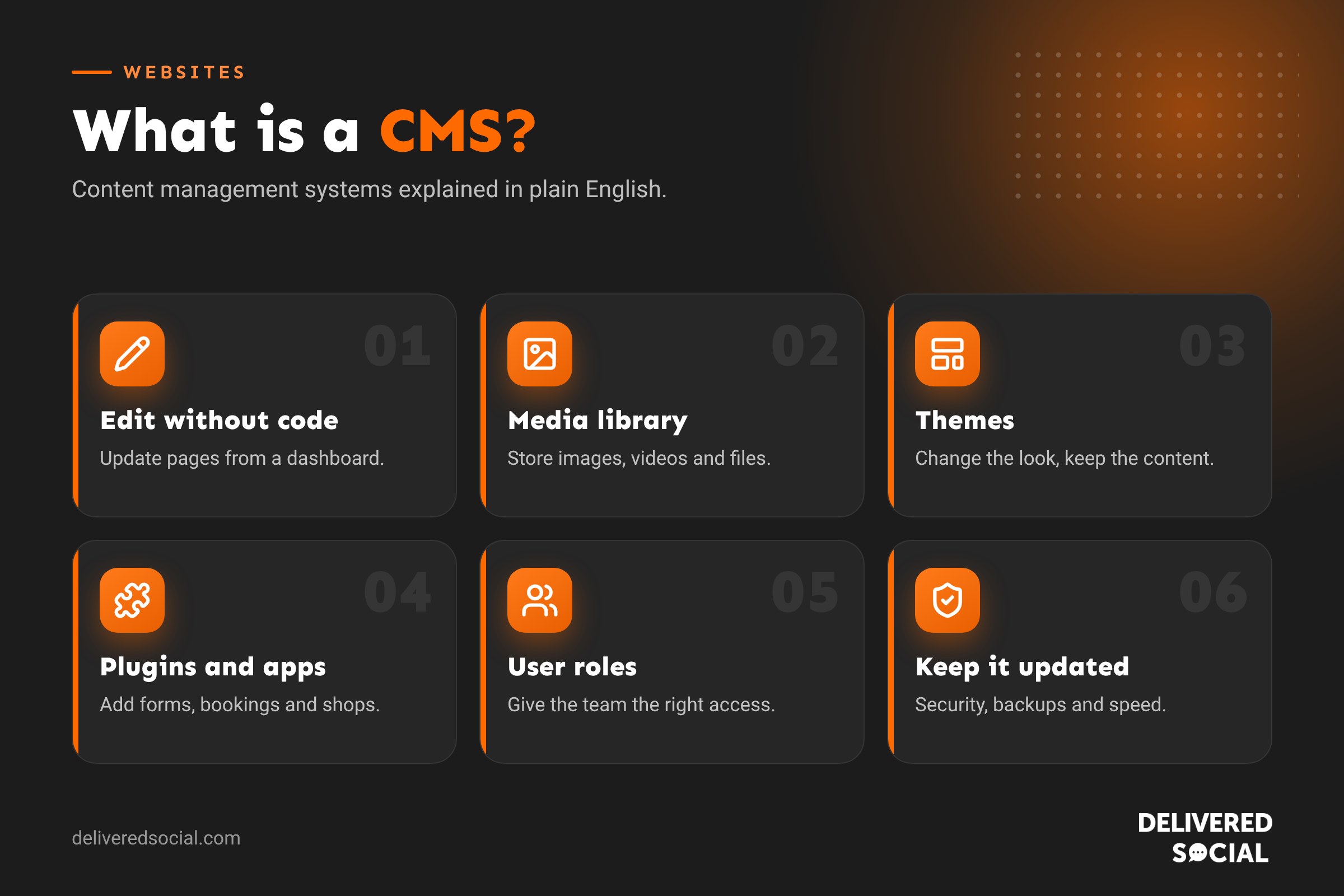
A CMS, or content management system, is software that lets you create, edit and publish website content through a simple dashboard, without needing to know HTML or programming. You type text, upload images and click publish, and the CMS turns it into web pages.
Behind the scenes, a CMS stores your content in a database and uses templates (themes) to display it. That separation means you can change the words on a page without touching the design, or change the design without rewriting every page.
What does a CMS do?
- Create and edit pages and blog posts with a visual editor.
- Manage images, videos and files in a media library.
- Control the look of your site with themes and templates.
- Organise content with menus, categories and tags.
- Give team members access with different permission levels.
- Add features such as forms, booking, shops and SEO tools through plugins or apps.
- Schedule content to publish at a later date.
Popular CMS platforms
| CMS | Best for | Good to know |
|---|---|---|
| WordPress | Most small business websites, blogs and shops | Powers a large share of all websites; huge choice of themes and plugins |
| Shopify | Online shops | Hosted, with payments and stock built in; monthly fee plus transaction costs |
| Wix | Simple DIY sites | Drag-and-drop builder; easy to start, harder to move away from |
| Squarespace | Design-led sites for creatives | Polished templates; fewer add-ons |
| Webflow | Design and marketing teams | Visual control over layout with clean code |
| Joomla and Drupal | Complex, large or highly custom sites | Powerful but more technical |
| Headless CMS (Contentful, Sanity, Strapi) | Content shared across websites and apps | Needs developers to build the front end |
Open source vs hosted CMS
There are two main types of CMS:
- Open source, self-hosted (such as WordPress.org): the software is free, you choose your own hosting, and you have full control and ownership. You or your web partner handle updates, security and backups.
- Hosted, software as a service (such as Shopify, Wix and Squarespace): you pay a monthly fee and the provider handles hosting, updates and security. It’s simpler, but you’re tied to their platform, features and pricing.
Neither is right for everyone. Think about how much control you want, who will maintain the site and how likely you are to need custom features later.
What is a headless CMS?
A headless CMS stores content but doesn’t decide how it looks. Developers build a separate front end that pulls content in, which allows the same content to appear on a website, an app and other screens. It’s powerful for larger organisations but usually more expensive to build and maintain. Our guide to headless websites explains the pros and cons.
How to choose the right CMS for your business
- Who will update the site? Choose something your team will be comfortable using every week.
- What do you need it to do? Blog, shop, bookings, memberships, multiple languages?
- How important is SEO? Check you can control titles, descriptions, URLs, redirects and page speed.
- What will it cost over three years? Include hosting, subscriptions, plugins, apps and support.
- Can you leave? Make sure you can export your content and that you own your domain.
- Who will support it? A well-known CMS makes it easier to find help.
Why WordPress is so popular
WordPress is the most widely used CMS in the world, for several reasons: it’s free and open source, it works for almost any type of website, it has thousands of themes and plugins, it’s well supported by hosting companies and developers, and you own your site outright. Its flexibility also means it needs looking after: plugins and themes must be kept updated, and security and backups matter.
CMS and SEO
Most modern CMS platforms can rank well in Google, but some make it easier than others. A good CMS for SEO lets you:
- Edit page titles and meta descriptions.
- Choose clean, readable URLs.
- Add alt text to images.
- Create redirects when pages move.
- Generate an XML sitemap automatically.
- Load quickly on mobile.
- Add structured data for products, reviews and local business details.
Keeping your CMS secure
- Update the CMS, themes and plugins regularly.
- Use strong passwords and two-factor authentication for all admin users.
- Remove plugins and users you no longer need.
- Take automatic daily backups, stored somewhere separate.
- Use reputable hosting with firewalls and malware scanning.
Most hacked small business websites are caused by outdated plugins or weak passwords, both of which are easy to prevent.
Moving to a different CMS
If your current website is hard to update, slow or limiting your business, moving to a new CMS can help. Plan the move carefully: list every existing page, decide where each will go, and set up redirects from old addresses to new ones so you don’t lose your Google rankings. Test the new site thoroughly before switching over.
How a CMS works behind the scenes
Most CMS platforms have two parts that work together:
- The content management application: the dashboard where you log in, write and edit content, upload images and change settings.
- The content delivery application: the part that takes your content from the database, applies your theme and turns it into the pages visitors see.
When someone visits your website, the CMS builds the page from your content and template, often in a fraction of a second. Caching stores ready-made copies of pages so they load even faster.
Plugins, apps and extensions
One of the biggest advantages of a popular CMS is the range of add-ons. On WordPress they’re called plugins; on Shopify and Wix they’re apps. They can add almost any feature:
| Feature | Examples of what an add-on can do |
|---|---|
| Forms | Contact forms, quote requests and surveys |
| Bookings | Appointments, tables and classes |
| Ecommerce | Products, payments and delivery options |
| SEO | Titles, descriptions, sitemaps and redirects |
| Security | Firewalls, login protection and malware scans |
| Performance | Caching and image compression |
| Marketing | Email sign-ups, pop-ups and reviews |
Install only what you need. Every extra plugin adds something to maintain and can slow your site down.
User roles and permissions
A CMS lets you give people different levels of access. In WordPress, for example, an Administrator can change everything, an Editor can publish and manage all content, an Author can publish their own posts and a Contributor can write but not publish. Give each person the lowest level they need, and remove access when someone leaves.
What a CMS costs
| Cost | Self-hosted (such as WordPress) | Hosted (such as Shopify, Wix) |
|---|---|---|
| Software | Free | Included in monthly plan |
| Hosting | Paid separately | Included |
| Design | Free or premium themes, or custom design | Templates, or custom design |
| Add-ons | Free and paid plugins | Free and paid apps |
| Maintenance | Updates, backups and security, often via a support plan | Mostly handled by the platform |
Signs your current CMS isn’t working
- You need a developer for every small text change.
- Your site is slow, especially on mobile.
- You can’t add features you need, such as bookings or an online shop.
- You can’t control basic SEO settings.
- Updates keep breaking things.
- You’re paying for lots of apps to do simple jobs.
If several of these sound familiar, it may be time to review your platform.
Questions to ask your web designer about the CMS
- Which CMS will you use, and why is it right for us?
- Will we be able to edit text, images and blog posts ourselves?
- Who owns the website, domain and hosting accounts?
- How will updates, backups and security be handled after launch?
- What will it cost each year to keep running?
- Can we add features such as bookings or a shop later?
- Will you show us how to use it, or provide a simple guide?
Clear answers to these questions avoid surprises after launch and make sure your website stays easy to manage for years.
A good CMS should feel like a tool that helps you, not a barrier between you and your website.
Frequently asked questions
Is a CMS the same as a website builder?
Website builders such as Wix and Squarespace are a type of hosted CMS with drag-and-drop design tools built in.
Do I need a CMS for a small website?
Almost always, yes. Even a five-page site benefits from being easy to update without a developer.
Is WordPress free?
The software is free. You’ll pay for hosting, your domain and any premium themes, plugins or support.
Can I change my CMS later?
Yes, but it takes planning. Content may need moving or rebuilding, and redirects are essential to protect your SEO.
Need a website that’s easy to manage?
We design and build fast, easy-to-update WordPress websites for small businesses across Surrey, Hampshire and the UK. See our web design services or call us on 01483 608 303.































