



Keep reading
Rather we just did it for you?
Let's get your business seen.
Social media, websites, SEO and ads from a team you can actually meet.
Posting on LinkedIn regularly is one of the best ways to build trust with clients, partners and future employees, but it’s easy to let it slip when you’re busy. Scheduling solves that. This guide explains how to schedule posts on LinkedIn using LinkedIn’s own tool, how to schedule for a company Page, the best times to post, and when it’s worth using a scheduling tool instead.
Can you schedule posts on LinkedIn?
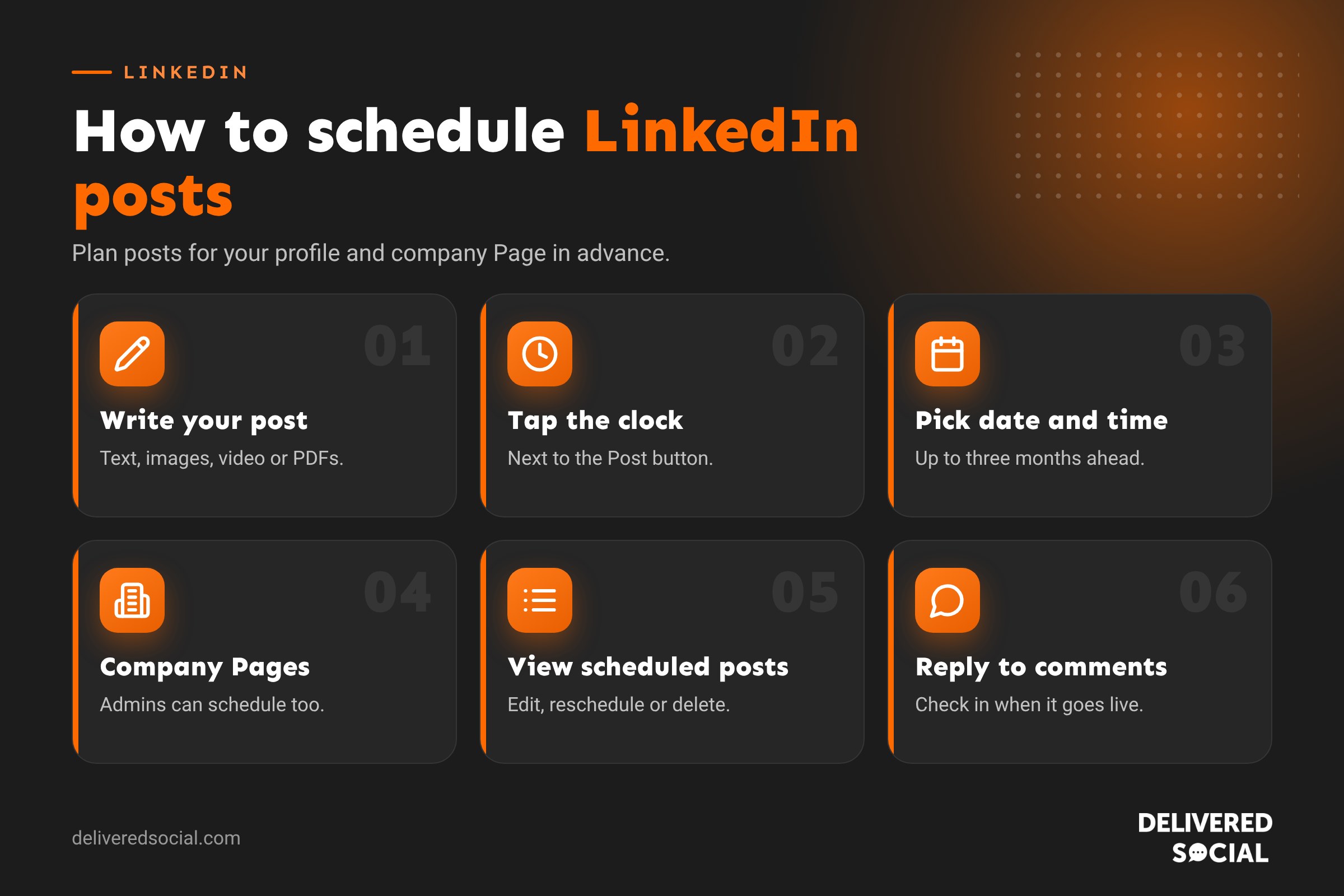
Yes. LinkedIn has a built-in scheduler for both personal profiles and company Pages. You can schedule posts up to three months ahead, on desktop and in the mobile app. It works for text posts, images, videos and documents, though some formats, such as polls and events, can have limits.
How to schedule a LinkedIn post on desktop
- Go to linkedin.com and click Start a post at the top of your feed.
- Write your post and add any images, video or documents.
- Click the clock icon next to the Post button.
- Choose the date and time you want it to go live.
- Click Next, check your post, then click Schedule.
How to schedule a LinkedIn post on mobile
- Open the LinkedIn app and tap Post.
- Write your post and add any media.
- Tap the clock icon.
- Pick the date and time, then tap Next.
- Tap Schedule.
How to schedule posts for a LinkedIn company Page
- Go to your company Page and make sure you’re viewing it as an admin.
- Click Create or Start a post.
- Write your post, then click the clock icon.
- Choose the date and time, click Next, then Schedule.
Only Page admins (and content admins) can create and schedule Page posts. If you can’t see the option, ask a super admin to check your access.
How to see, edit or delete scheduled posts
After scheduling a post, click the clock icon again when starting a new post and choose View all scheduled posts. From there you can:
- Reschedule a post to a new date or time.
- Edit the text or media.
- Delete a scheduled post.
For company Pages, scheduled posts appear in the Page’s admin view.
Best times to post on LinkedIn
LinkedIn is a professional network, so people are most active during the working week. For UK audiences, good times to test are:
| Day | Times worth testing |
|---|---|
| Tuesday to Thursday | 7:30 to 9:00am, 12:00 to 1:00pm, 5:00 to 6:00pm |
| Monday | Late morning, once inboxes are cleared |
| Friday | Morning, as activity drops in the afternoon |
| Weekends | Generally quieter, but can work for personal stories |
These are starting points. Check your own analytics to see when your audience is most active and adjust. Tools such as Metricool also suggest the best times based on your account’s data.
How often should you post on LinkedIn?
For most professionals and small businesses, two to five posts a week is plenty. Consistency matters more than volume. Posting once a week, every week, is better than five posts one week and nothing for a month. Scheduling a batch of posts every Monday morning or once a month is the easiest way to stay consistent.
What to schedule (and what not to)
Good posts to schedule:
- Tips and advice from your area of expertise.
- Case studies and client results (with permission).
- Behind-the-scenes posts about your team and culture.
- Company news, new hires and milestones.
- Blog posts and guides, with a short summary.
- Events and webinars you’re running.
Things best posted live:
- Reactions to breaking industry news.
- Posts that need you to be around to reply to comments quickly.
- Anything sensitive or time-critical.
Whatever you schedule, check in after it goes live to reply to comments. Conversations in the first hour help a post reach more people.
Native scheduling vs scheduling tools
| LinkedIn’s scheduler | Scheduling tools | |
|---|---|---|
| Cost | Free | Free plans or monthly subscription |
| Platforms | LinkedIn only | LinkedIn plus Instagram, Facebook, TikTok and more |
| Calendar view | Basic list | Full visual calendar |
| Team approvals | No | Often included |
| Analytics | LinkedIn’s own | Combined reports across platforms |
| Best-time suggestions | No | Often included |
If you only post on LinkedIn, the built-in scheduler is all you need. If you manage several platforms or work in a team, a tool such as Metricool, Hootsuite, Buffer or Sprout Social will save time.
Tips for better scheduled LinkedIn posts
- Write a strong first line. Only the first two or three lines show before “…see more”.
- Use short paragraphs and white space to make posts easy to read on mobile.
- Add a relevant image, video or document, which helps posts stand out in the feed.
- Tag people and companies you mention, using the @ symbol.
- Use two or three relevant hashtags, not lots.
- End with a question to invite comments.
- Check the post the day before it goes out, in case anything has changed.
Personal profile or company Page?
Posts from people usually reach more people than posts from company Pages, because LinkedIn’s feed favours personal connections and conversations. Many businesses get the best results by scheduling posts on both: news and announcements on the company Page, and opinions, stories and expertise from the founder and team on their own profiles. Reposting company Page posts with a personal comment helps them reach further.
Common problems
- No clock icon: update the app or try desktop.
- Scheduled post didn’t publish: check your scheduled posts list, and make sure any linked media was uploaded fully.
- Wrong time zone: LinkedIn uses your device’s time zone, so check it when travelling.
- Can’t schedule a poll: some formats can’t be scheduled; post them live instead.
Building a simple LinkedIn content calendar
Scheduling works best when you know what you’re going to post. A simple weekly rhythm makes it easy:
| Day | Post type | Example |
|---|---|---|
| Tuesday | Expertise | “Three things to check before signing a commercial lease” |
| Wednesday | Story | A lesson learned from a recent project |
| Thursday | Proof | A client result, review or case study |
| Friday | People | A team introduction or behind-the-scenes moment |
Plan a month at a time, write all the posts in one sitting, and schedule them. Leave room for timely posts you’ll want to share live.
LinkedIn post formats you can schedule
- Text posts: simple and effective for opinions and stories.
- Image posts: photos, graphics or quotes.
- Video: short videos work well, especially with captions.
- Document posts: upload a PDF to create a swipeable carousel, great for guides and checklists.
- Link posts: share a blog or web page with a short summary.
Writing LinkedIn posts in advance without losing the human touch
Scheduled posts can feel stiff if they’re written like adverts. Keep them personal:
- Write in the first person and in your own voice.
- Share real examples, numbers and lessons, not generic statements.
- Keep sentences short and to the point.
- Ask a genuine question at the end.
- Be ready to reply to comments when the post goes live. Set a reminder if you need to.
Measuring your scheduled posts
LinkedIn shows analytics for each post, including impressions, reactions, comments, reposts and, for company Pages, clicks and follower growth. Review your posts once a month and look for patterns: which topics, formats, days and times get the most engagement and, most importantly, lead to messages, enquiries and profile views. Then schedule more of what works.
Scheduling for a team
If several people in your business post on LinkedIn, coordinate so you’re not all sharing the same thing at the same time. A shared content calendar helps everyone see what’s planned. Ask colleagues to comment on and repost company Page posts in the first hour, which helps them reach more people. Employee advocacy, where staff share company news with their own networks, is one of the most effective ways to grow a company Page.
Scheduling LinkedIn posts with Metricool
- Connect your LinkedIn profile or company Page to Metricool.
- Open the planner and click a date and time.
- Write your post, add media and choose LinkedIn (and any other platforms).
- Click Schedule.
Metricool also suggests best times to post based on your audience and shows LinkedIn analytics alongside your other platforms.
A monthly LinkedIn scheduling routine
- On the last week of the month, review last month’s best posts.
- Note key dates, events and news for the month ahead.
- Write eight to twelve posts in one sitting.
- Add images, videos or PDFs to each.
- Schedule them across the month at your best times.
- Set a daily ten-minute reminder to reply to comments and messages.
Frequently asked questions
Is scheduling LinkedIn posts free?
Yes. LinkedIn’s built-in scheduler is free for personal profiles and company Pages.
How far ahead can I schedule a LinkedIn post?
Up to three months in advance.
Do scheduled posts get less reach?
There’s no evidence that LinkedIn penalises scheduled posts. Reach depends on how people engage with the post.
Can I schedule LinkedIn articles and newsletters?
Yes. Articles and newsletter editions can be scheduled from the publishing tool.
Want LinkedIn content that wins business?
We help business owners across Surrey, Hampshire and the UK plan and manage LinkedIn content for their profiles and company Pages. See our social media services or call us on 01483 608 303.































