



Keep reading
Rather we just did it for you?
Let's get your business seen.
Social media, websites, SEO and ads from a team you can actually meet.
Your home page is usually the most visited page on your website, so it needs to be the right one. By default, WordPress shows your latest blog posts on the home page, which isn’t ideal for most businesses. This guide explains how to change your WordPress home page, set a static front page, choose a separate blog page, edit the home page with the block editor or a page builder, and fix common problems like the wrong page showing or changes not appearing.
Latest posts vs a static home page
| Latest posts | Static page | |
|---|---|---|
| What visitors see | Your newest blog posts | A designed page you control |
| Best for | Blogs, news and magazine sites | Businesses, charities and shops |
| Changes | Updates automatically with each post | Stays the same until you edit it |
| Control over message | Low | High |
Most business websites use a static home page that explains who they are, what they offer and how to get in touch, with a separate page for the blog.
How to set a static home page
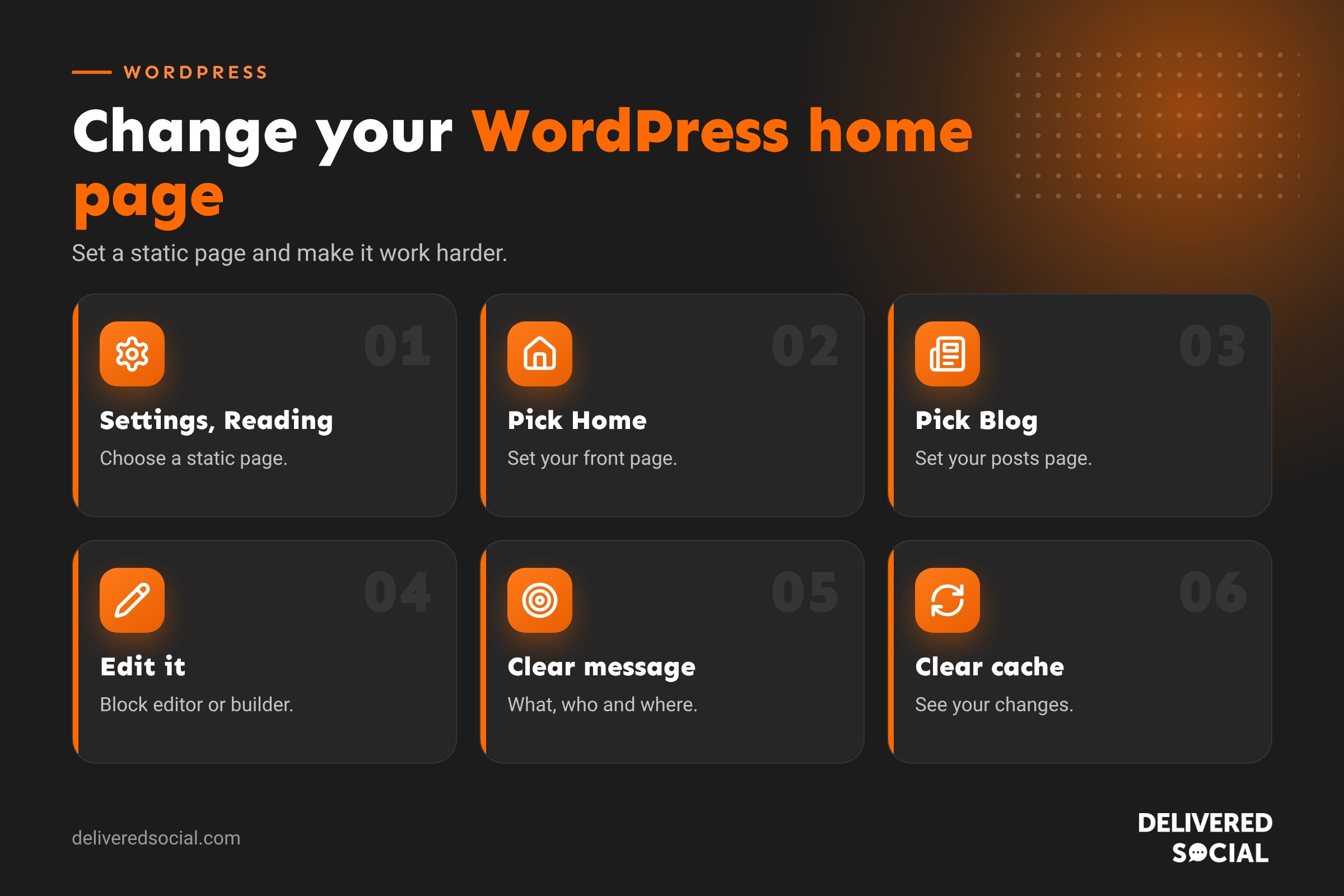
- Create the pages. Go to Pages, then Add New. Create a page called “Home” and, if you have a blog, another called “Blog” or “News”. The blog page can be left empty.
- Publish both pages.
- Go to Settings, then Reading.
- Under “Your homepage displays”, choose A static page.
- Set Homepage to “Home”.
- Set Posts page to “Blog”.
- Click Save Changes.
- Visit your site in a private window to check.
Changing it in the Site Editor
If you use a block theme, you can also manage the home page through Appearance, then Editor. Here you can choose which page is the home page and edit its template. The Reading settings still control which page is used as the front page, so it’s worth checking both if something looks wrong.
How to edit your home page
Using the block editor
- Go to Pages and find the page marked “Front Page”.
- Click Edit.
- Add, move or remove blocks such as headings, images, buttons and columns.
- Click Update to save.
Using a page builder
If your site uses a page builder, open the home page and click the builder’s edit button. Drag in sections, change text and images, then save or update. Some themes also use a “Customiser” under Appearance for parts of the home page, such as hero images.
What should a business home page include?
- A clear headline saying what you do and who for.
- A short supporting line explaining why people choose you.
- A clear call to action, such as “Get a quote” or “Book now”.
- Your main services or products, each linking to its own page.
- Trust signals: reviews, accreditations, logos of clients or partners.
- Real photos of your team, work or premises.
- Where you work, for local businesses.
- Recent news or blogs, to show you’re active.
- Contact details and an easy way to get in touch.
For design ideas, see our guide to web design trends for 2026.
Changing the home page title and description in Google
What Google shows for your home page comes from its SEO title and meta description. Set these in your SEO plugin’s box on the home page. Include your business name, what you do and where, within around 60 characters for the title. Our guide to meta titles explains how to write them.
Common home page problems and fixes
| Problem | Likely cause | Fix |
|---|---|---|
| Blog posts still show on the home page | Reading settings not saved | Set a static page in Settings, then Reading |
| Wrong page showing as home | Different page selected | Check the Homepage dropdown in Reading settings |
| Changes not appearing | Caching | Clear site, host and browser caches |
| Home page looks different from the editor | Template or theme settings override it | Check the page template and theme options |
| Blog page is empty | Posts page not set | Choose the blog page in Reading settings |
| Home page shows “Sample Page” | Default page left selected | Pick your real Home page and delete the sample |
If changes aren’t showing, see how to clear WordPress cache.
Testing a new home page safely
Redesigning the most important page on your site is risky to do live. Safer options:
- Create a draft page with the new design, preview it, then swap it in using Reading settings when ready.
- Use a staging site to test the new home page with everything else.
- Keep the old page as a draft for a while, in case you need to switch back.
Swapping the selected home page in Reading settings is instant, so you can launch a new design with one click.
Changing the home page URL
Your home page always appears at your main domain, such as yourwebsite.co.uk, whatever the page is called in WordPress. If you change the page’s slug, the home page address doesn’t change. If you previously had a separate home page URL, such as /home/, set up a redirect to the main domain to avoid duplicate content.
Changing the home page on a WooCommerce shop
Shops can use a designed home page, with featured products, categories and offers, rather than the default shop page. WooCommerce has a separate “Shop page” setting under WooCommerce, then Settings, then Products. You can set a static home page in Reading settings and keep the shop page for the full product listing.
Measuring how your home page performs
- Check how many visitors land on the home page in Google Analytics.
- See where they click next, and how many leave straight away.
- Track button clicks and form submissions from the home page.
- Test new headlines or calls to action and compare results over a few weeks.
Small changes to the headline or main button can make a noticeable difference to enquiries.
Need help with your home page?
If you can’t find the right settings, your theme behaves unexpectedly, or you’d like a home page that brings in more enquiries, a web designer can help. It’s often the single best page to invest in.
Home page writing tips
Most visitors decide within seconds whether they’re in the right place. Lead with what you do and who you help, in plain language, rather than a vague slogan. “Family-run plumbers covering Guildford and Woking, with same-day call-outs” tells people far more than “Excellence in every drop”. Keep paragraphs short, use headings that answer questions, and repeat your main call to action further down the page for people who scroll.
Home page mistakes to avoid
- Large image sliders that slow the page and hide your message.
- Too many competing buttons and calls to action.
- Walls of text with no headings.
- No contact details above the fold on mobile.
- Out-of-date news or offers.
- Stock photos instead of real images of your business.
Updating your home page regularly
Your home page shouldn’t stand still for years. Refresh it with new reviews, recent projects, seasonal offers and up-to-date photos every few months. Fresh, relevant content gives returning visitors a reason to look around and shows you’re active.
Quick glossary
- Static front page: a fixed page used as the home page.
- Posts page: the page that lists your latest blog posts.
- Block editor: WordPress’s built-in visual editor.
- Page builder: a drag-and-drop tool for designing pages.
- Template: the layout a page uses.
Whatever you change, keep a copy of the previous version so you can compare results and switch back if needed.
A clear, well-structured home page is one of the simplest ways to turn more of your existing visitors into enquiries.
Key takeaways
- Set a static home page in Settings, then Reading.
- Create a separate page for your blog posts.
- Edit the home page with the block editor or your page builder.
- Clear caches if changes don’t appear.
- Test new designs as drafts or on staging, then swap them in.
Frequently asked questions
How do I change my home page in WordPress?
Go to Settings, then Reading, choose “A static page” and select your new home page.
How do I edit my WordPress home page?
Open Pages, find the page labelled “Front Page” and click Edit.
Why is my WordPress home page showing blog posts?
Your Reading settings are set to show latest posts. Switch to a static page.
Can I have a home page and a blog page?
Yes. Set one page as the home page and another as the posts page.
Why aren’t my home page changes showing?
Usually caching. Clear your caching plugin, host cache and browser cache.
Can I use a different page as my home page temporarily?
Yes. Select another page in Reading settings, then switch back whenever you like.
Does changing my home page affect SEO?
It can if content changes a lot. Keep key messages and update titles and descriptions.
What is the difference between the home page and the front page?
In WordPress, the front page is the page shown at your main domain. Most people call it the home page.
Want a home page that brings in enquiries?
We design WordPress websites and home pages for businesses across Surrey, Hampshire and the UK. Call us on 01483 608 303.































