




Keep reading
Rather we just did it for you?
Let's get your business seen.
Social media, websites, SEO and ads from a team you can actually meet.
Instagram remembers what you search for. Every account, hashtag, place and keyword you look up is saved, and the app uses it to suggest people and content back to you. That’s handy most of the time, but sometimes you’d rather it forgot: you share a phone, you’re tidying up a business account, or your suggestions have simply gone off track. This guide explains how to clear your Instagram search history on iPhone, Android and desktop, how to remove single searches, how to reset suggestions, and what clearing your history actually does.
What Instagram saves when you search
Instagram keeps a record of:
- Accounts you’ve searched for or tapped on from search.
- Keywords you’ve typed, such as “wedding cakes” or “garden ideas”.
- Hashtags you’ve looked up.
- Places and location pages you’ve opened.
- Audio you’ve searched for.
These appear as “Recent” when you tap the search bar, and they help shape the accounts and posts Instagram suggests to you in Search and Explore.
How to clear all your Instagram search history (iPhone and Android)
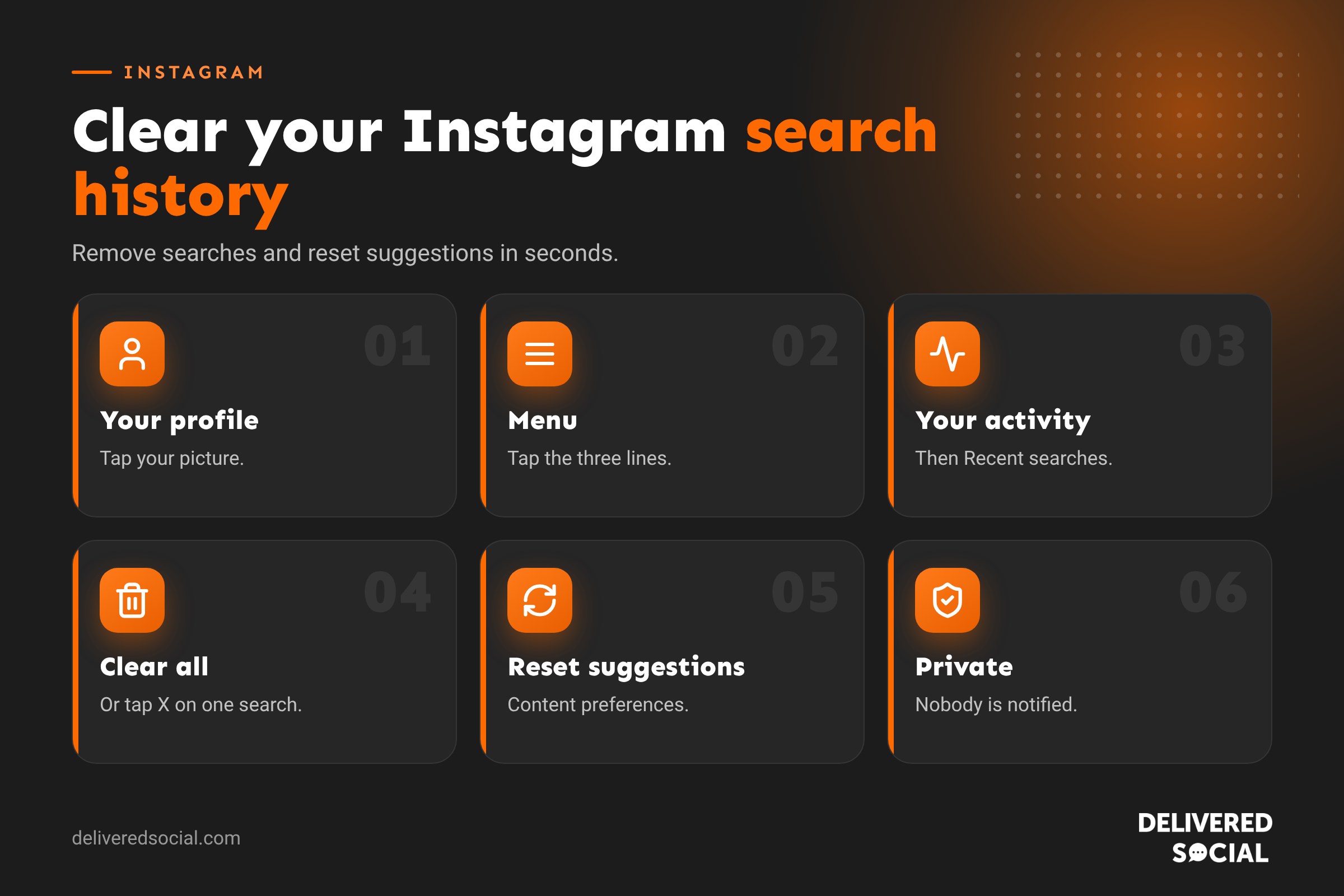
- Open Instagram and tap your profile picture in the bottom corner.
- Tap the menu (three lines) in the top corner.
- Tap Your activity.
- Scroll to Recent searches and tap it.
- Tap Clear all, then confirm.
Instagram sometimes moves these menus around between updates. If you can’t find Your activity, type “search history” into the search bar at the top of the Settings screen.
The quick way from the search screen
- Tap the magnifying glass to open Search.
- Tap the search bar. Your recent searches appear.
- Tap See all next to Recent.
- Tap Clear all and confirm.
How to delete a single search
If you only want to remove one or two searches:
- Open Search and tap the search bar.
- Find the search under Recent.
- Tap the X next to it.
That search disappears straight away and the rest stay.
How to clear Instagram search history on a computer
- Go to instagram.com and log in.
- Click Search in the left-hand menu.
- Click Clear all next to Recent, or click the X next to a single search.
Search history is linked to your account, so clearing it on one device clears it everywhere you’re logged in.
How to clear Instagram search suggestions
Clearing recent searches removes what you’ve looked up, but Instagram may still suggest accounts when you start typing. These suggestions are based on who you follow, who you interact with, your contacts and accounts popular in your area. To reduce unwanted suggestions:
- Clear your search history first, as above.
- Remove a suggested account in the “Suggested for you” section by tapping the X on its card.
- Stop interacting with accounts you don’t want suggested, as Instagram notices what you view and like.
- Disconnect your contacts if suggestions are based on people in your phone. Go to Accounts Centre, then Your information and permissions, then Upload contacts, and turn it off. You can also delete previously uploaded contacts there.
- Mark posts as Not interested in Explore so similar content appears less.
How to reset your Instagram search and Explore
If your Explore page and suggestions have gone completely off track, Instagram lets you reset suggested content. This clears the interests Instagram has built up about you, so you start fresh. Look for Reset suggested content under Content preferences in Settings. Instagram also offers “Your Algorithm” controls in some places, where you can see and adjust the topics it thinks you like.
Resetting doesn’t delete your posts, followers or messages. It only affects what Instagram recommends. Our guide to resetting your Instagram algorithm explains the full process.
What happens when you clear your search history?
| What changes | What stays the same |
|---|---|
| Your Recent searches list is emptied | Accounts you follow |
| Searches stop influencing suggestions as strongly | Your posts, Stories and Highlights |
| Nobody using your phone can see what you searched | Your messages |
| Your likes and comments |
Nobody is told when you clear your history, and the people or accounts you searched for are never notified that you looked them up.
Can other people see what I search on Instagram?
No. Your search history is private to you. Other users can’t see who or what you’ve searched for. The only way someone else could see it is by using your phone or logging into your account, which is a good reason to keep a strong password and two-factor authentication switched on.
Why does a search keep coming back?
Sometimes a search reappears after you’ve cleared it. Common reasons include:
- The app hadn’t synced: close and reopen Instagram.
- The app is out of date: update it from the App Store or Google Play.
- You’re seeing a suggestion, not a recent search: Instagram may still suggest an account you interact with a lot.
- Another device is logged in: check where you’re logged in under Accounts Centre, then Password and security, then Where you’re logged in.
If the problem continues, clearing the app’s cache on Android (Settings, Apps, Instagram, Storage, Clear cache) or reinstalling the app on iPhone usually fixes it.
Downloading your Instagram search history
If you want a copy of your activity before clearing it, Instagram lets you download your information. Go to Accounts Centre, then Your information and permissions, then Download your information. You can choose which data to include and Instagram sends a file when it’s ready.
Search history tips for business accounts
If you manage a business account, especially one shared by several people, a few habits help:
- Clear history after competitor research so suggestions stay focused on your customers and community.
- Don’t use the business account for personal browsing, which skews what Instagram shows you and your team.
- Use separate logins where possible. Meta Business Suite lets team members manage the account without sharing passwords.
- Review where you’re logged in regularly and log out of old devices.
How Instagram search can help your business be found
Search works both ways. Just as you search for accounts, customers search for businesses like yours. To appear in their results:
- Put your main service in your name field, for example “Sarah Jones | Wedding Florist Surrey”. The name field is searchable.
- Use clear keywords in your bio and captions, as Instagram search now looks at words, not just hashtags.
- Add your location to posts and your profile.
- Use a small number of relevant hashtags, now limited to five per post.
- Post consistently so Instagram understands what your account is about.
Other Instagram privacy settings worth checking
- Activity status: choose whether people can see when you were last active.
- Story sharing: decide whether people can share your Stories.
- Tags and mentions: control who can tag you.
- Hidden words: filter offensive comments and messages.
- Restrict, mute and block: manage people you’d rather not hear from. See our guide to muting someone on Instagram.
Clearing other Instagram history
Search history isn’t the only thing Instagram keeps. In Your activity you can also review and manage:
- Likes: see and unlike posts you’ve liked.
- Comments: review and delete comments you’ve left.
- Story replies and sticker responses.
- Recently deleted: posts, Reels and Stories you’ve deleted, kept for 30 days in case you change your mind.
- Links you’ve visited through Instagram’s in-app browser, which you can clear.
- Time spent on the app each day.
Going through these every few months is a good habit, especially on a business account used by several people.
A quick monthly privacy routine
- Clear recent searches.
- Check where you’re logged in and remove old devices.
- Review connected apps and websites in Accounts Centre.
- Check who can tag and mention you.
- Update Hidden words with any new terms you want filtered.
It takes five minutes and keeps your account tidy and secure.
Clearing search history on a shared or work phone
If several people use the same phone for your business Instagram, such as a shop tablet or a work mobile, clear the search history at the end of each week. It keeps the account focused, stops one person’s browsing shaping everyone’s suggestions, and avoids awkward moments when a customer glances at the screen.
Frequently asked questions
How do I clear my Instagram search history?
Go to your profile, tap the menu, tap Your activity, then Recent searches, and tap Clear all. You can also tap See all in the search screen and clear from there.
Does clearing search history notify anyone?
No. Nobody is notified, and people are never told you searched for them.
Why does Instagram still suggest the same accounts?
Suggestions also come from who you follow, interact with and your contacts. Remove suggestions individually and turn off contact syncing.
Can I turn off Instagram search history completely?
Instagram doesn’t offer a switch to stop saving searches, but you can clear them as often as you like.
Does clearing search history reset my Explore page?
Not entirely. To refresh Explore fully, use Reset suggested content in your Content preferences.
Want help getting your business found on Instagram?
We help businesses across Surrey, Hampshire and the UK set up their Instagram profiles so customers can find them, and keep them posting content that works. See our social media management services or call us on 01483 608 303.































