



Keep reading
Rather we just did it for you?
Let's get your business seen.
Social media, websites, SEO and ads from a team you can actually meet.
Setting up an Instagram account only takes a couple of minutes, but a few decisions at the start make a big difference, especially if it’s for your business. This guide explains how to create an Instagram account on a phone or computer, how to make a second account, how to switch to a business account, and how to set up your profile properly from day one.
How to create an Instagram account on your phone
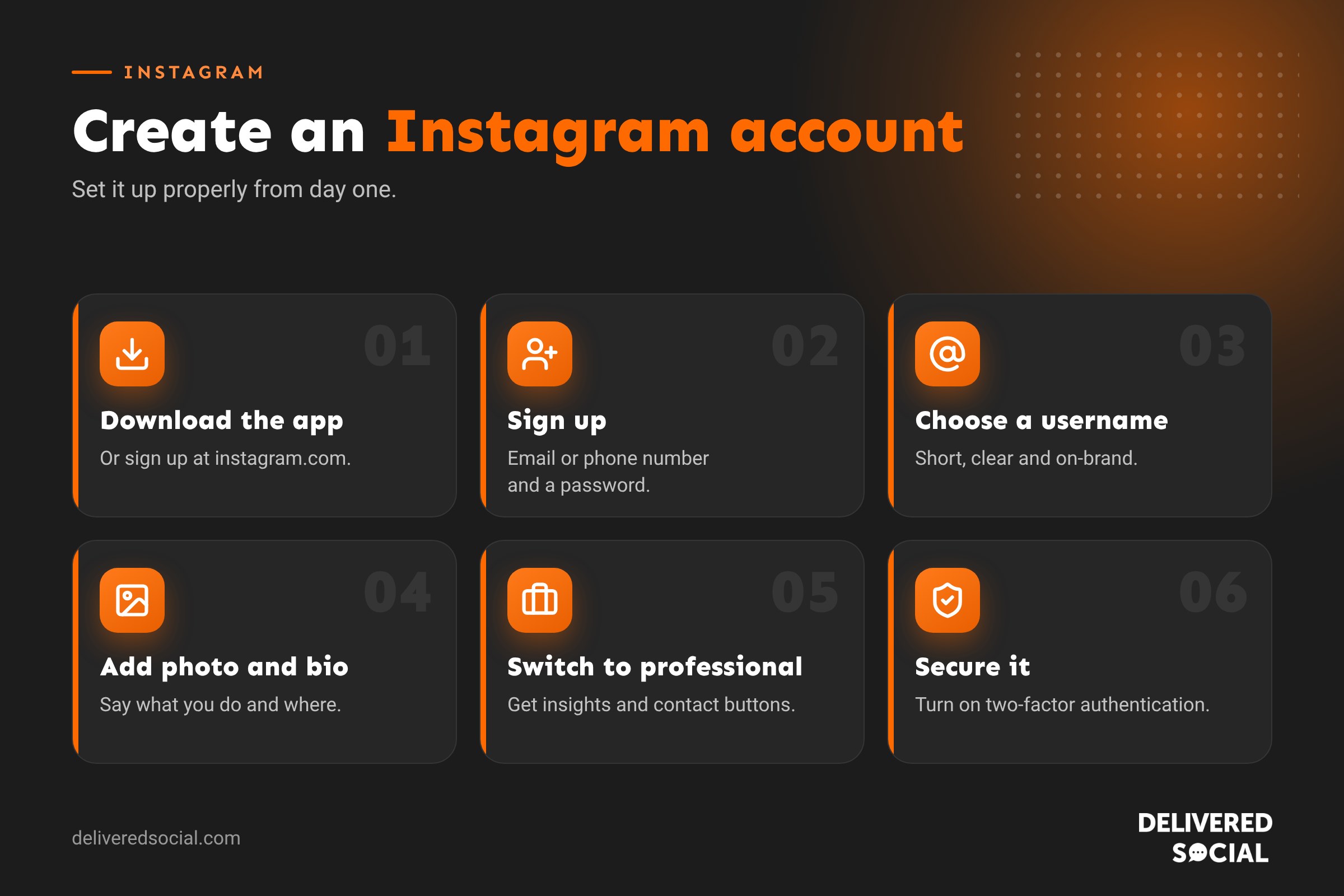
- Download the Instagram app from the App Store (iPhone) or Google Play (Android).
- Open it and tap Create new account.
- Enter your mobile number or email address and follow the steps to confirm it with a code.
- Add your name and create a strong password.
- Enter your date of birth. You must be at least 13.
- Choose a username (your @handle). You can change it later.
- Add a profile picture and follow some accounts to fill your feed.
If you already have Facebook, you can choose to sign up with your Facebook account instead.
How to create an Instagram account on a computer
- Go to instagram.com in your browser.
- Click Sign up.
- Enter your email or mobile number, full name, username and password.
- Add your date of birth and confirm the code Instagram sends you.
See our guide to using Instagram on desktop for posting from your computer.
How to make a second Instagram account
You can have up to five accounts and switch between them without logging out. It’s ideal for keeping personal and business accounts separate.
- Go to your profile and tap your username at the top.
- Tap Add Instagram account, then Create new account.
- Choose a username and password and follow the steps.
To switch accounts, tap your username at the top of your profile and pick the account.
How to set up a business account on Instagram
Instagram has three account types: personal, creator and business. A business account gives you insights, contact buttons, advertising and links to Facebook and Meta Business Suite.
- Go to your profile and tap the menu (three lines).
- Tap Account type and tools, then Switch to professional account.
- Choose a category, such as “Restaurant” or “Marketing agency”.
- Select Business.
- Add contact details (email, phone, address) and connect your Facebook Page if you have one.
Choosing a good username
- Use your business name, or as close as possible.
- Keep it short, easy to spell and free of random numbers.
- Use the same handle across Instagram, TikTok, Facebook and X if you can.
- If your name is taken, add your town or what you do, such as @smithsbakery.guildford.
Setting up your profile properly
- Profile photo: your logo for a business, or a clear headshot for a personal brand. It displays as a small circle, so keep it simple.
- Name field: this is searchable, so include your business name and a keyword, such as “Smith’s Bakery | Guildford Cakes”.
- Bio: up to 150 characters saying what you do, who for and where.
- Links: add up to five links, such as your website, booking page and shop.
- Highlights: save your best Stories, such as reviews, FAQs and prices, to the top of your profile.
- First posts: publish at least six to nine posts before promoting your account, so new visitors see what you’re about. Check our Instagram post size guide.
Keep your account secure
- Turn on two-factor authentication in Accounts Centre, then Password and security.
- Use a strong, unique password, ideally in a password manager.
- For business accounts, add team members through Meta Business Suite rather than sharing the password.
- Ignore messages claiming your account will be deleted or that you’ve won a badge; they’re phishing scams.
Troubleshooting sign-up problems
- Not receiving the code: check your spam folder or try signing up with your phone number instead.
- Username not available: try a variation with your location or a full stop.
- “Try again later” message: wait a few hours; too many attempts can trigger a temporary block.
Personal, creator or business account: which is right?
| Personal | Creator | Business | |
|---|---|---|---|
| Best for | Friends and family | Influencers, artists, personal brands | Shops, services, venues and brands |
| Insights | No | Yes | Yes |
| Contact buttons | No | Yes | Yes, including Book and Order buttons |
| Run adverts | No | Yes | Yes |
| Instagram Shopping | No | Limited | Yes |
| Can be private | Yes | No | No |
| Scheduling tools | Limited | Yes | Yes |
You can switch between account types at any time, and you won’t lose your posts or followers.
Writing an Instagram bio that works
Your bio is your shop window. In 150 characters it should answer: what do you do, who is it for, where are you, and what should people do next? Some examples:
- “Family-run bakery in Guildford. Celebration cakes and fresh bread daily. Order online below.”
- “Gas Safe heating engineer covering Surrey. Boiler installs, servicing and repairs. Call or book below.”
- “Wedding photographer in Hampshire. Relaxed, natural photos. Now booking 2027 dates.”
Use line breaks and a couple of emojis if they suit your brand, but keep it easy to read.
Your first 30 days on Instagram
- Week 1: set up your profile, publish six to nine posts introducing your business, products and team, and create two or three Story Highlights.
- Week 2: start posting Reels, two or three a week, showing what you do. Follow and engage with local businesses and customers.
- Week 3: share Stories most days: behind the scenes, polls and questions. Reply to every comment and DM.
- Week 4: check your Insights to see which posts reached the most people, then plan next month around what worked.
Add your Instagram link to your website, email signature and Google Business Profile so customers can find you.
Instagram account settings to check straight away
- Two-factor authentication in Accounts Centre.
- Contact options so customers can call, email or get directions.
- Message controls to decide who can message you and where requests go.
- Hidden words to filter offensive comments and messages automatically.
- Linked Facebook Page so you can post to both and use Meta Business Suite.
- Accessibility: turn on automatic captions for your Reels.
What to do if you can’t create an account
- “This email is already in use”: you may already have an account. Try “Forgotten password” with that email.
- Age restrictions: you must be at least 13, and some features are limited for younger users.
- Account suspended straight after sign-up: this can happen if Instagram’s systems suspect automation. Follow the on-screen steps to confirm your identity.
- Using a VPN: turn it off while signing up, as it can trigger security checks.
Should every business be on Instagram?
Most consumer-facing businesses benefit from Instagram, especially in food, hospitality, beauty, fashion, home and lifestyle, events and trades with visual results. It’s less important for some business-to-business services, where LinkedIn may be a better first choice. Even then, a simple, up-to-date Instagram profile reassures customers who check you out there before getting in touch.
Should you link Instagram to Facebook?
For businesses, yes. Linking your Instagram account to your Facebook Page through Accounts Centre lets you post to both at once, manage messages from both in one inbox, run adverts across both platforms and use Meta Business Suite to schedule content and check insights. You can still keep the content different on each if you want. You don’t need a personal Facebook profile to be visible on your business page, but you do need one to manage a Page.
How to delete or deactivate an account you no longer need
If you’ve made a test account or an old business has closed, you can temporarily deactivate or permanently delete it in Accounts Centre, then Personal details, then Account ownership and control. Deactivation hides your profile until you log back in. Deletion is permanent after 30 days, so download your data first if you might want your photos.
Getting verified on Instagram
The blue tick is no longer only for celebrities. Businesses and creators can apply for Meta Verified, a paid subscription that adds a verified badge, impersonation protection and direct access to account support. You’ll need to meet Meta’s eligibility rules, such as having an active account with some posting history and providing proof of your business. It isn’t essential for most small businesses, but it can help if people have set up fake accounts using your name.
Frequently asked questions
Is Instagram free?
Yes. Creating an account and posting is free. Businesses can choose to pay for adverts or Meta Verified.
Can I create an Instagram account without a phone number?
Yes, you can sign up with an email address instead.
Can I use the same email for two Instagram accounts?
Each account needs its own email address or phone number, but you can add several accounts to the app and switch between them.
Should my business use a business or creator account?
Most businesses should choose a business account. Creator accounts suit influencers and personal brands.
Want help getting started on Instagram?
We set up and manage Instagram accounts for small businesses across Surrey, Hampshire and the UK. See our social media services or call us on 01483 608 303 for a friendly chat.































