



Keep reading
Rather we just did it for you?
Let's get your business seen.
Social media, websites, SEO and ads from a team you can actually meet.
A review on Google Maps takes less than a minute to write, but it can make a huge difference to a local business. Reviews help people choose where to eat, who to call and which shop to visit, and they help businesses show up higher in local search. This guide explains how to leave a review on Google Maps on a phone or computer, how to add photos, edit or delete a review, why a review might not appear, how Local Guides works, and how businesses can make it easy for happy customers to leave one.
What you need before you start
- A Google account. Reviews are linked to your Google account name and profile picture.
- The business name or its location on the map.
- A genuine experience. Google’s rules say reviews must be based on a real visit or interaction.
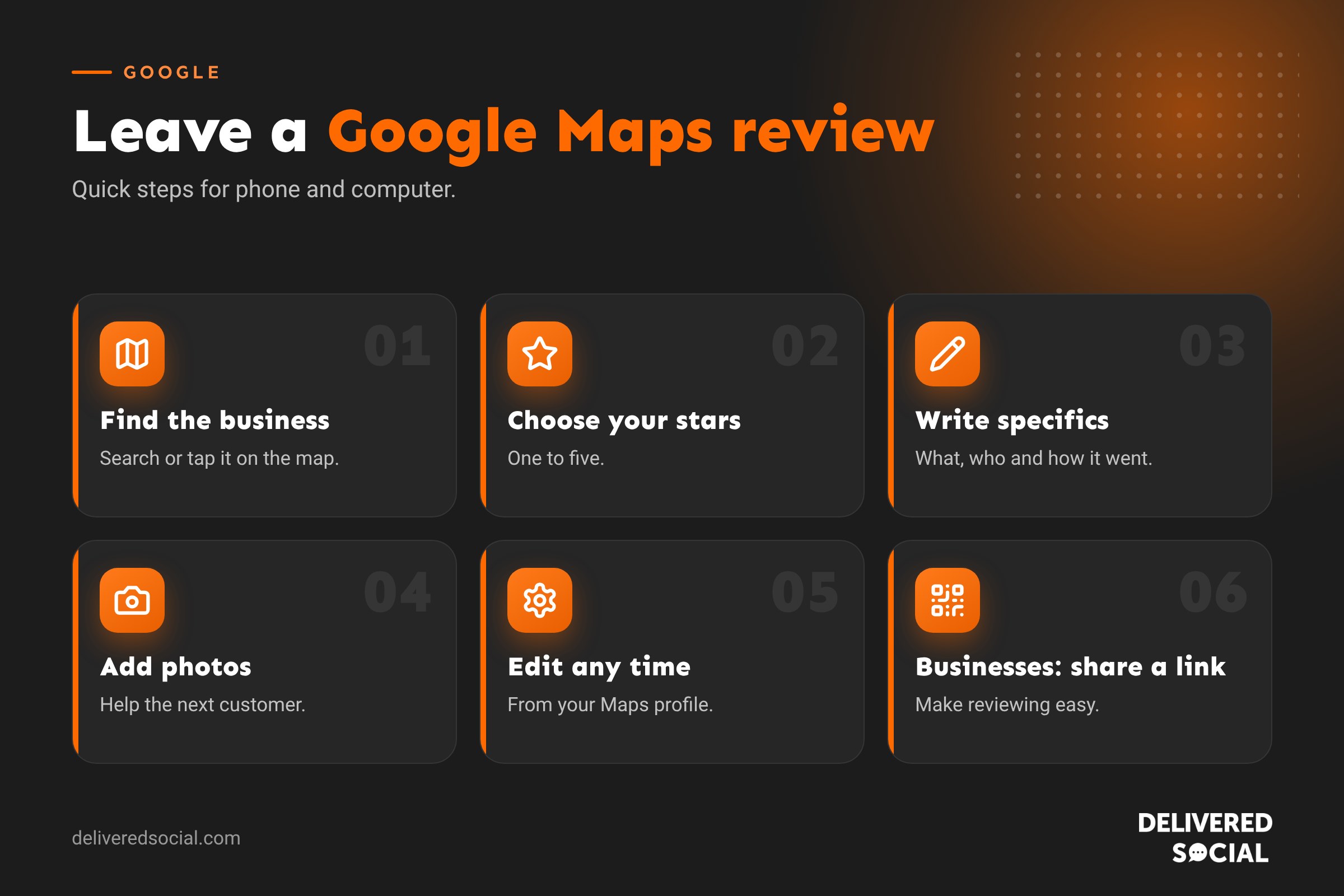
How to leave a review on Google Maps on your phone
- Open the Google Maps app on your iPhone or Android phone.
- Search for the business, or tap it on the map.
- Tap the business name to open its profile.
- Scroll down and tap Reviews, then Write a review, or tap the empty stars.
- Choose a star rating from one to five.
- Answer any quick questions, such as price, service or atmosphere, if they appear.
- Write about your experience.
- Tap the photo icon to add pictures, if you’d like.
- Tap Post.
How to leave a review on a computer
- Go to Google Maps or search for the business in Google.
- Click the business to open its profile panel.
- Click Reviews, then Write a review.
- Choose your stars and write your review.
- Add photos if you’d like, then click Post.
You can also leave a review straight from Google search results: search the business name and look for the “Write a review” button in the business panel.
How to write a helpful review
- Be specific. Mention what you bought, the service you had or the staff member who helped.
- Describe the experience. Was it quick, friendly, good value, clean, easy to book?
- Add useful details. Parking, accessibility, dog friendliness, waiting times and opening hours all help other people.
- Keep it honest and fair. Stick to facts and your own experience.
- Add a photo or two. Pictures of food, finished work or the venue make reviews more useful.
A review like “Great service” is welcome, but “Sam fixed our boiler the same day, explained everything clearly and the price matched the quote” is far more helpful to the next customer.
Adding photos and videos to a review
When writing your review, tap or click the camera icon to add photos or short videos from your phone or computer. You can also add photos to a business without a review by opening its profile and choosing Add photos. Avoid photos showing other customers’ faces or personal information, and make sure the pictures are your own.
How to edit or delete your Google review
| Task | How to do it |
|---|---|
| See all your reviews | In the Maps app, tap your profile picture, then Your profile, then Reviews (or Contributions) |
| Edit a review | Find the review, tap the three dots, then Edit review |
| Delete a review | Find the review, tap the three dots, then Delete review |
| Change the star rating | Edit the review and select a new rating |
Menu names change from time to time, but your reviews are always found in your Google Maps profile.
Why isn’t my Google review showing?
- It’s still processing. New reviews can take a little while to appear.
- It was filtered. Google’s systems may hold back reviews that look suspicious, such as many reviews posted at once from the same place.
- It broke the rules. Reviews with offensive language, personal details, links, advertising or off-topic content can be removed.
- Possible conflict of interest. Reviews from owners, staff or people paid to leave them aren’t allowed.
- Account issues. Brand new or unverified accounts may have reviews held back.
- Only you can see it. Sometimes a review shows on your profile but isn’t public. Check by viewing the business while signed out.
Google’s review rules in brief
- Reviews must reflect a genuine experience.
- No fake reviews, and no reviews in exchange for discounts, freebies or payment.
- No reviews of your own business or your employer.
- No hate speech, harassment, threats or personal information.
- No spam, links or advertising.
In the UK, consumer protection law also bans fake reviews and incentivised reviews that aren’t clearly disclosed, so businesses should never buy or swap reviews.
What are Google Local Guides?
Local Guides is Google’s free programme for people who contribute to Google Maps. You earn points for reviews, ratings, photos, answers, edits and adding missing places. As your points grow you move up levels and get a badge on your profile. Many people enjoy it as a way to help their community and see how many people their photos and reviews have helped. Read more in our post about getting involved with Google Local Guides.
For businesses: how to get more Google reviews
- Claim and complete your Google Business Profile so customers can find you easily.
- Get your review link. In your Business Profile, choose “Ask for reviews” to get a short link or QR code.
- Ask at the right moment, straight after a great experience or a job well done.
- Make it easy: add the link to emails, receipts, invoices, your website and your email signature.
- Use a QR code on counters, tables, business cards or leave-behind cards.
- Explain how, with simple steps for less confident customers.
- Never offer rewards in exchange for reviews.
Our guide on getting more Google reviews for your small business includes message templates you can use.
For businesses: replying to reviews
- Reply to every review, good and bad, ideally within a couple of days.
- Thank people by name and mention something specific they said.
- Stay calm with criticism. Apologise where appropriate and offer to sort it out privately.
- Keep replies short and professional; other customers read them too.
- Report fake reviews through your Business Profile if they break Google’s rules.
Why reviews matter for local SEO
Reviews are one of the factors Google considers when deciding which businesses to show in the local map pack. The number of reviews, how recent they are, the star rating and the words people use all play a part. A steady flow of genuine, detailed reviews also builds trust, so more people who see your listing go on to call, book or visit.
Reviewing a business that isn’t on the map
If a business is missing from Google Maps, you can add it. In the Maps app, tap Contribute, then Add place, and fill in the name, category and address. Once Google approves it, you and others can leave reviews. Business owners should claim their listing through Google Business Profile to manage it properly.
Reviewing on behalf of older relatives
If a parent or grandparent wants to leave a review but isn’t confident with technology, sit with them and help them use their own Google account. Reviews should come from the person who had the experience, so avoid posting it from your account on their behalf.
Rating places without a written review
You can simply tap a star rating without writing anything. A written review is more helpful to others, though, so even one or two sentences is worth adding.
Quick glossary
- Google Business Profile: the free listing that shows a business on Google Search and Maps.
- Local Guides: Google’s programme rewarding people who contribute to Maps.
- Map pack: the group of local businesses shown on a map in search results.
- Review link: a short link that takes customers straight to the review form.
Key takeaways
- Open the business in Google Maps, tap Reviews, then Write a review.
- Specific, honest reviews with photos help other people most.
- You can edit or delete your reviews at any time from your profile.
- Reviews may be filtered if they look suspicious or break Google’s rules.
- Businesses should make reviewing easy with a link or QR code, and never pay for reviews.
Frequently asked questions
How do I leave a review on Google Maps?
Open the business in Google Maps, tap Reviews, then Write a review, choose your stars, write your review and tap Post.
Do I need a Google account to leave a review?
Yes. Reviews are linked to your Google account name and picture.
Can I leave a Google review anonymously?
No, but you can change the name shown on your Google account profile.
Why has my Google review disappeared?
It may have been filtered or removed for breaking Google’s policies, or it may still be processing.
Can a business delete my review?
No. Businesses can only report reviews to Google, which decides whether to remove them.
Want more reviews and better local visibility?
We help businesses across Surrey, Hampshire and the UK manage their Google Business Profiles, reviews and local SEO. See our digital marketing services or call us on 01483 608 303.































