

Keep reading
Rather we just did it for you?
Let's get your business seen.
Social media, websites, SEO and ads from a team you can actually meet.
Seen a great video on Facebook and want to watch it later, or need a copy of a video your business posted? There are several ways to save videos from Facebook, from the built-in Save button to downloading your own uploads. This guide explains each method on phones and computers, how to download your own Facebook videos and Reels, what the rules say about downloading other people’s videos, and how businesses can keep a safe archive of their content.
The quick answer
| What you want | Best method |
|---|---|
| Watch someone’s video later | Use Facebook’s Save button |
| A copy of a video you uploaded | Download it from your post or Download Your Information |
| Your page’s videos for a business archive | Meta Business Suite or your original files |
| Someone else’s video file | Ask the creator for permission and the original file |
| Share a video elsewhere | Copy the link and share it, rather than reuploading |
How to save a Facebook video to watch later
Facebook’s Save feature keeps videos in a private list so you can find them again. It doesn’t download the file to your device, but it’s the simplest and safest option.
On the app
- Find the video in your feed or on a page.
- Tap the three dots at the top right of the post.
- Tap Save video (or Save post).
- Choose a collection or leave it in your saved items.
On a computer
- Click the three dots on the post.
- Click Save video.
Where to find saved videos
Open the menu and tap Saved. You can organise saved items into collections, such as “Recipes” or “Marketing ideas”, and share collections with friends.
How to download your own Facebook videos
If you uploaded a video, you can download it again. This is useful if you’ve lost the original or changed phone.
From the post (computer)
- Go to the post with your video.
- Click the three dots on the post or video.
- Choose Download video if it’s shown. This option usually appears only for videos you uploaded.
From Download Your Information
- Go to Settings, then Accounts Centre.
- Choose Your information and permissions, then Download your information.
- Select your Facebook account and choose Some of your information.
- Tick Posts or Photos and videos, choose the date range and a high media quality.
- Request the download. Facebook will notify you when the file is ready.
This is the best way to back up lots of videos at once.
How to download your Facebook Reels
For Reels you created, open the Reel, tap the three dots and look for Download or Save to device. If you made it in the Facebook camera, you can also save a copy to your phone before posting. Reels made with licensed music may be saved without the audio, because the music licence only covers playing it on Facebook.
Can you download other people’s Facebook videos?
You’ll find plenty of websites and apps claiming to download any Facebook video by pasting a link. Be careful:
- Copyright. The video belongs to whoever made it. Downloading and reusing it without permission can break copyright law and Facebook’s terms.
- Security. Many downloader sites are full of pop-ups and dodgy ads, and some try to install unwanted software or collect your login details. Never enter your Facebook password into a third-party site.
- Private content. Downloading videos from private profiles or groups without permission is a breach of trust and privacy.
If you’d like to use someone’s video, for example a customer’s review or a supplier’s product demo, the right way is to ask them for permission and the original file. Most people are happy to share, and you’ll get better quality too.
Sharing a Facebook video without downloading it
Often you don’t need the file at all. You can:
- Share it to your timeline, page, a group or a Story.
- Send it in Messenger or WhatsApp.
- Copy the link and paste it into an email or another platform.
- Embed a public video on your website using the embed option in the three-dot menu.
Sharing gives the creator credit and keeps the video’s views and engagement in one place.
How businesses should manage Facebook video files
For businesses, the best approach is never to rely on Facebook as your only copy. Platforms change, accounts get hacked and pages occasionally get restricted. Keep a proper video library:
- Save original files from your phone or camera to cloud storage, such as Google Drive or Dropbox, before posting.
- Keep the edited version and the raw footage separately.
- Name files clearly, for example “2026-11-cafe-christmas-menu-reel.mp4”.
- Back up regularly using Download Your Information for your page.
- Get written permission before using customer or staff videos, and keep a record.
Repurposing your Facebook videos
Once you have your own video files, you can reuse them across platforms:
- Post them as Instagram Reels, TikToks and YouTube Shorts (remove watermarks first).
- Add them to your website, for example on service pages.
- Use clips in email newsletters with a link to watch.
- Turn the best ones into ads.
Our guide to Facebook Stories has ideas for quick videos you can repurpose too.
Common problems
- No Download option: you can usually only download videos you uploaded. Use Save for others.
- Downloaded video has no sound: licensed music may be removed from downloads.
- Poor quality download: choose high media quality in Download Your Information.
- Can’t find saved videos: check the Saved section in the menu.
- Video was deleted by the creator: it will disappear from your saved items too.
Video tips for business pages
Since video is so central to Facebook, it’s worth getting the basics right when you create it. Film vertically for Reels and Stories, add captions because many people watch with the sound off, keep the first three seconds interesting, and finish with a clear next step, such as “Message us to book”. Short, genuine videos of your team, products and customers often outperform polished adverts.
Is it legal to download Facebook videos in the UK?
Downloading your own content is fine. Downloading someone else’s content for private viewing is a grey area, but reusing it publicly, especially in marketing, without permission can infringe copyright. UK copyright law protects videos automatically, and businesses are more likely to face complaints or takedowns. If in doubt, ask permission or share the original post instead.
Key takeaways
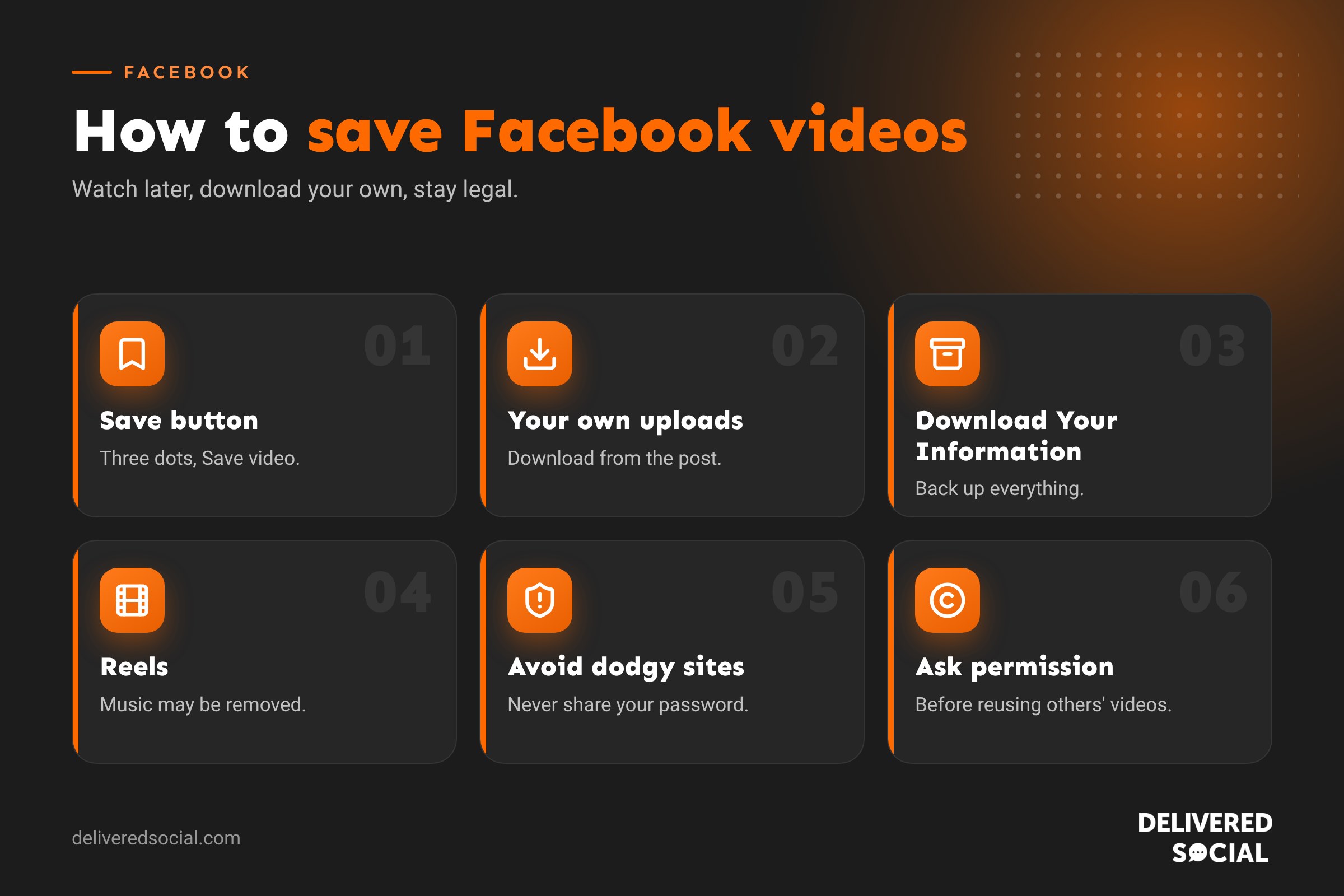
- Use Facebook’s Save button to keep videos to watch later.
- Download your own videos from the post menu or Download Your Information.
- Avoid third-party downloader sites, which can be unsafe and break copyright.
- Ask permission before using other people’s videos.
- Keep your own original video files backed up outside Facebook.
Saving Facebook Live videos
If you go live on your Facebook page, the broadcast is saved to your page as a video once it ends, unless you choose otherwise. You can download it from the post like any other video you uploaded, then edit the best moments into short clips for Reels, Stories and other platforms. Many businesses get weeks of content from a single 20-minute live session, such as a Q and A, a product launch or a behind-the-scenes tour.
Saving videos from Facebook groups
The Save option works for videos in groups too, as long as you’re a member and the video is still available. If you’re a group admin and want to keep useful member videos, such as tutorials, ask the member for the original file and permission before reusing it elsewhere, and credit them when you do.
A simple monthly video routine for businesses
- At the start of each month, move last month’s raw and edited videos into a dated folder in cloud storage.
- Check your best-performing Facebook videos in Meta Business Suite insights.
- Pick the top two and repurpose them for Instagram, TikTok or YouTube Shorts.
- Run a Download Your Information backup for your page every few months.
Quick glossary
- Save: Facebook’s bookmark feature for posts and videos.
- Download Your Information: a tool to export your Facebook data, including videos.
- Accounts Centre: where Meta settings for Facebook and Instagram live.
- Embed: displaying a public Facebook video on your own website.
Frequently asked questions
How do I save a video from Facebook?
Tap the three dots on the post and choose Save video. Find it later in the Saved section.
Can I download a Facebook video to my phone?
You can download videos you uploaded. For other videos, use Save or ask the creator for the file.
Where do saved Facebook videos go?
To the Saved section of your Facebook menu, not your phone’s gallery.
Why can’t I download a Facebook video?
Facebook usually only lets you download your own uploads.
How do I back up all my Facebook videos?
Use Download Your Information in Accounts Centre and choose high media quality.
Want video content for your Facebook page?
We film and edit Reels, Stories and videos for businesses across Surrey, Hampshire and the UK. Read our guide to Facebook image sizes, see our social media management services or call us on 01483 608 303.