



Keep reading
Rather we just did it for you?
Let's get your business seen.
Social media, websites, SEO and ads from a team you can actually meet.
Instagram and Facebook are both owned by Meta, and linking them makes it easy to share posts and manage messages in one place. But there are good reasons to separate them, from privacy to keeping your personal and business life apart. This guide explains how to unlink Facebook from Instagram, what happens when you do, how to stop cross-posting without fully disconnecting, and what businesses need to watch out for.
How Facebook and Instagram are linked
There are two different kinds of connection, and it helps to know which one you have:
| Connection | What it does | Where to change it |
|---|---|---|
| Accounts Centre | Links your personal Facebook and Instagram accounts for shared logins, cross-posting and connected experiences | Accounts Centre in either app |
| Facebook Page connection | Links a business Instagram account to a Facebook Page for adverts, Meta Business Suite and a shared inbox | Facebook Page settings or Meta Business Suite |
Many business owners have both. Removing one doesn’t automatically remove the other.
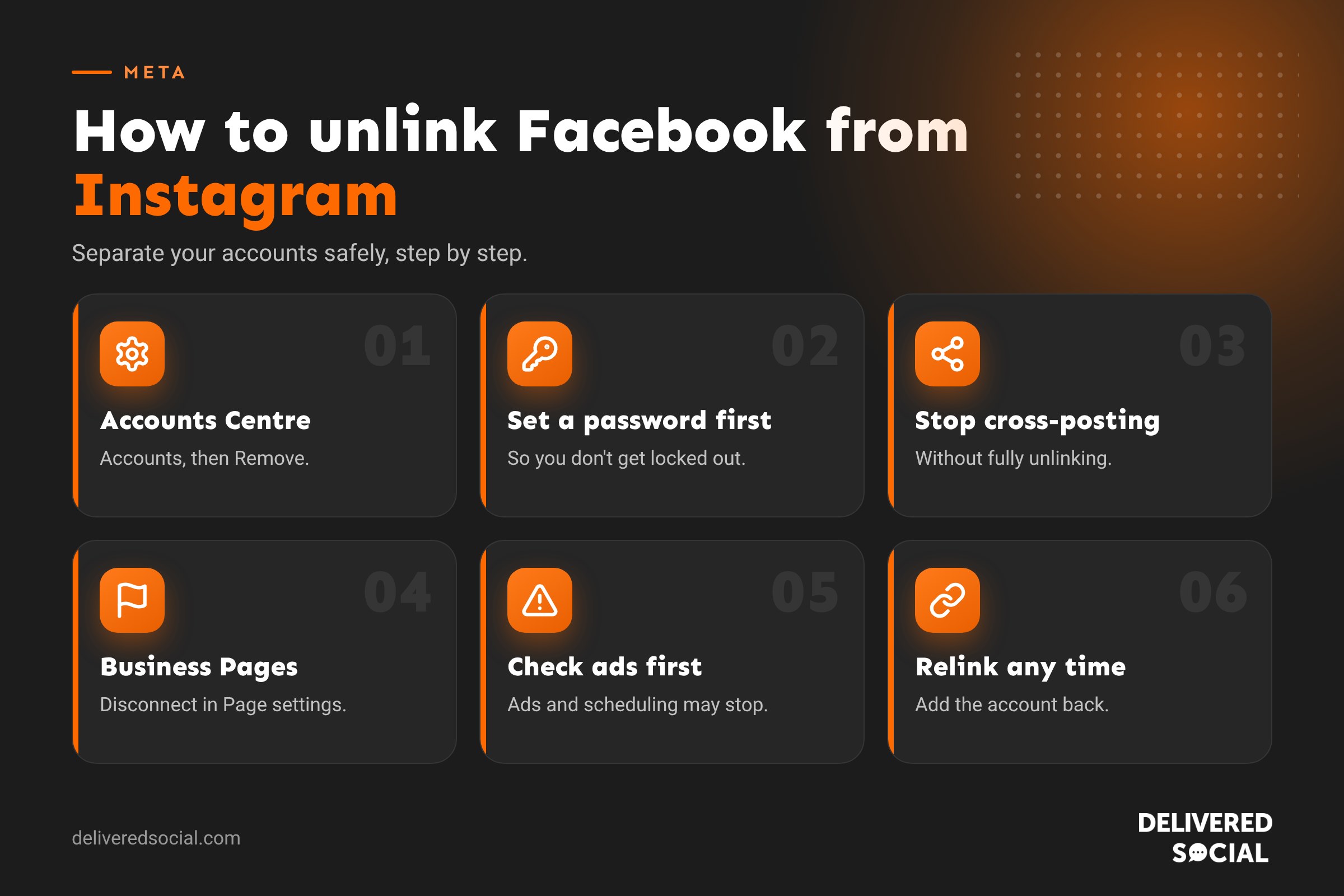
How to unlink Facebook from Instagram on the app
- Open Instagram and go to your profile.
- Tap the three lines at the top right, then Accounts Centre.
- Tap Accounts.
- Find the Facebook account you want to unlink and tap Remove.
- Tap Continue and confirm. Instagram will explain what will change.
How to unlink Instagram from Facebook
You can do the same thing from the Facebook side:
- In the Facebook app, tap the menu (your profile picture or three lines), then Settings and privacy, then Settings.
- Tap Accounts Centre, then Accounts.
- Choose your Instagram account and tap Remove, then confirm.
On a computer, open Accounts Centre from the settings menu on facebook.com or instagram.com and follow the same steps.
What happens when you unlink your accounts?
- Cross-posting stops. Posts, Stories and Reels will no longer share automatically to the other platform.
- Logging in changes. You won’t be able to log in to Instagram with Facebook (or the other way round), so make sure you know your Instagram password first.
- Your posts stay where they are. Nothing already posted is deleted from either platform.
- Messaging between apps may stop, depending on your settings.
- Shared settings separate, such as some ad preferences and connected experiences.
- Your followers aren’t affected. Nobody is notified that you’ve unlinked.
Meta may still use information from both accounts in some ways under its privacy policy, as they’re both Meta products. Unlinking mainly controls how the accounts work together for you.
How to stop cross-posting without unlinking
If you only want to stop your Instagram posts appearing on Facebook, you don’t need to unlink completely:
- Go to Accounts Centre and tap Sharing across profiles (sometimes called Connected experiences).
- Choose the account you share from.
- Turn off automatic sharing for posts, Stories and Reels.
You can also turn sharing on or off for a single post using the Share to Facebook toggle on the screen before you post.
Disconnecting a business Instagram from a Facebook Page
For businesses, the Page connection is the important one. It powers Instagram adverts, Meta Business Suite, the combined inbox and many scheduling tools. To disconnect it:
- On a computer, go to your Facebook Page and switch into the Page.
- Open Settings, then Linked accounts (or Linked Accounts, Instagram).
- Click Remove or Disconnect next to Instagram and confirm.
In Meta Business Suite, you can also go to Settings, then Business assets, select the Instagram account and remove it from the business portfolio.
Before you disconnect a business account, check:
- Any adverts running on Instagram through that Page will stop or need a new connection.
- Scheduled posts in Meta Business Suite or tools such as Metricool may fail.
- Team members who manage Instagram through the Page will lose access.
- Instagram Shop and product tags may stop working if your shop relies on the connection.
- The shared inbox will no longer show Instagram messages.
Why people unlink Facebook and Instagram
- Privacy: keeping your personal Facebook separate from a public Instagram.
- Different audiences: your Facebook friends may not want to see everything you post on Instagram.
- Separating business and personal: especially if a business Instagram was linked to an owner’s personal Facebook.
- Handing over an account: when a staff member, agency or former owner set up the link.
- Leaving one platform: before deactivating or deleting Facebook or Instagram.
- Security: so a problem with one account doesn’t affect the other.
Should businesses keep Facebook and Instagram linked?
For most businesses, yes, at least through a Facebook Page. The connection lets you run adverts on both platforms, answer messages from one inbox, schedule content in Meta Business Suite and see combined insights. What’s worth reviewing is which personal accounts have access. If an ex-employee’s personal profile is the only admin of your Page, fix that before doing anything else.
Planning to advertise? Our guide to Meta ads explains how Facebook and Instagram advertising works.
How to reconnect your accounts
Changed your mind? Go back to Accounts Centre, tap Add accounts and log in to the account you want to link. For a business Page, go to the Page’s Linked accounts settings and connect Instagram again. You’ll need to turn cross-posting back on if you want it.
Common problems
- The Remove option is missing: it may be the only login method for one account. Set a password for that account first.
- Can’t disconnect a Page: you need full control (admin) access to the Page.
- Posts still appearing on Facebook: check sharing settings and any scheduling tools that post to both.
- Locked out after unlinking: use “Forgotten password” on the Instagram login screen.
Linking and unlinking for different situations
| Situation | What to do |
|---|---|
| You just don’t want posts shared to Facebook | Turn off sharing across profiles, but stay linked |
| You want your personal and business accounts kept separate | Remove your personal Facebook from the business Instagram’s Accounts Centre, but keep the business Page connection |
| A former employee linked your business Instagram to their Facebook | Add yourself as a Page admin, then remove their profile from Accounts Centre and Business Suite |
| You’re leaving Facebook completely | Set an Instagram password, unlink, then deactivate or delete Facebook |
| You’re selling or handing over the business | Transfer the Page and Instagram through Meta Business Suite, then remove your personal accounts |
Before you unlink: set an Instagram password
If you’ve always logged in to Instagram with Facebook, you may never have set an Instagram password. Unlink without one and you could lock yourself out. To check, go to Accounts Centre, then Password and security, then Change password, and choose your Instagram account. If it asks you to create a password, do it before unlinking. While you’re there, turn on two-factor authentication for both accounts.
What about Messenger and Instagram messages?
When accounts are linked, Meta may allow you to chat with Facebook friends from Instagram and the other way round, depending on your settings and region. Unlinking separates them, so your Instagram messages stay in Instagram and your Facebook messages stay in Messenger. Businesses that use Meta Business Suite’s inbox still see both, as long as the Instagram account remains connected to the Facebook Page.
Keeping your business accounts secure
Whether you keep your accounts linked or not, review who has access every few months. In Meta Business Suite, go to Settings, then People, and remove anyone who no longer needs access. Make sure at least two trusted people have full control, so you’re never locked out if one person leaves. And use strong, unique passwords with two-factor authentication on every account with admin access.
Unlinking on a computer, step by step
- Log in at instagram.com and click More at the bottom left.
- Click Settings, then Accounts Centre.
- Click Accounts and find the Facebook account.
- Click Remove, review what will change and confirm.
Changes usually take effect straight away. If you still see shared features afterwards, log out of both apps and back in.
How to check your accounts are properly separated
After unlinking, open Accounts Centre in both apps and check that each one only lists the accounts you expect. Post a test Story on Instagram and confirm it doesn’t appear on Facebook. Finally, check any scheduling tools and Meta Business Suite to make sure business posting still works as you intend.
Frequently asked questions
Will unlinking delete my posts?
No. Posts stay on both platforms. Only future automatic sharing stops.
Will my followers know I’ve unlinked?
No. Nobody is notified.
Can I link Instagram to a Facebook Page without linking my personal Facebook?
Yes. Connect Instagram to the Page in the Page’s settings, and you don’t need to add your personal Facebook to Instagram’s Accounts Centre.
Do I need Facebook to use Instagram?
No. You can sign up and use Instagram with just an email address or phone number.
Need help sorting your Meta accounts?
Tangled Facebook Pages, Instagram accounts and Business Suite access are very common. We help small businesses across Surrey, Hampshire and the UK tidy them up and keep them secure. See our social media services or call us on 01483 608 303.































