



Keep reading
Rather we just did it for you?
Let's get your business seen.
Social media, websites, SEO and ads from a team you can actually meet.
Setting up a Facebook account only takes a few minutes, but getting it right from the start saves problems later, especially if you plan to use Facebook for your business. This guide explains how to create a Facebook account on your phone or computer, how to set it up securely, and how to create a Facebook Page for your business once your account is ready.
What you need to create a Facebook account
- An email address or mobile phone number.
- Your real name, as Facebook requires people to use the name they go by in everyday life.
- Your date of birth. You must be at least 13 years old.
- A password you don’t use anywhere else.
Facebook accounts are for individual people. Businesses, brands and organisations should create a Facebook Page, which is managed from a personal account. We cover that below.
How to create a Facebook account on the app
- Download the Facebook app from the App Store or Google Play and open it.
- Tap Create new account.
- Enter your first name and surname, then tap Next.
- Enter your date of birth and gender.
- Enter your mobile number or email address.
- Create a password and tap Next.
- Agree to Facebook’s terms and privacy policy.
- Enter the confirmation code sent to your phone or email.
- Follow the prompts to add a profile picture and find friends, or skip them for now.
How to create a Facebook account on a computer
- Go to facebook.com in a web browser.
- Click Create new account.
- Fill in your name, mobile number or email, password, date of birth and gender.
- Click Sign up.
- Confirm your account using the code sent to you.
Setting up your profile
Once your account is created, take a few minutes to complete your profile:
- Profile picture: a clear photo of your face helps friends and contacts recognise you.
- Cover photo: the wide image at the top of your profile.
- Bio: a short line about you.
- Details: work, education and where you live, if you’re happy to share them.
- Featured photos: optional highlights on your profile.
Only share what you’re comfortable with. You can choose who sees each detail.
Security settings to turn on straight away
| Setting | Why it matters | Where to find it |
|---|---|---|
| Two-factor authentication | Stops people logging in even if they know your password | Accounts Centre, Password and security |
| Login alerts | Tells you when someone logs in from a new device | Accounts Centre, Password and security |
| Recovery email and phone | Lets you get back in if you’re locked out | Accounts Centre, Personal details |
| Where you’re logged in | Shows every device using your account | Accounts Centre, Password and security |
Business owners should take security especially seriously. If your personal account is hacked, you can lose access to your business Page and ad account too.
Privacy settings to check
- Open Settings and privacy, then Privacy Checkup.
- Choose who can see your future posts: Public, Friends or a custom list.
- Decide who can send you friend requests and who can look you up by email or phone number.
- Review who can see your friends list, birthday and other profile details.
- Check your ad preferences if you want more control over the adverts you see.
How to create a Facebook Page for your business
A Page is your business’s presence on Facebook. It’s separate from your personal profile, and customers can follow it, message it, review it and see your posts.
- In the app, tap the menu, then Pages, then Create. On a computer, go to facebook.com/pages/create.
- Enter your business name and choose a category, such as “Plumber” or “Café”.
- Add a short bio explaining what you do and where.
- Add contact details: website, phone number, email, address and opening hours.
- Upload a profile picture (usually your logo) and a cover photo.
- Add a call to action button, such as Book now, Call now or Send message.
- Invite friends to follow your Page and share it with customers.
Personal profile vs business Page
| Personal profile | Facebook Page | |
|---|---|---|
| For | Individual people | Businesses, brands and organisations |
| Connections | Friends (up to 5,000) | Unlimited followers |
| Insights | No | Yes |
| Adverts | Run through a Page | Yes |
| Reviews and opening hours | No | Yes |
| Team access | No | Yes, through Page access and Meta Business Suite |
Using a personal profile for a business breaks Facebook’s rules and can lead to the account being restricted. Always use a Page.
Giving others access to your business Page
If a member of staff or an agency helps with your Facebook, give them access to the Page rather than sharing your password. Go to your Page’s Settings, then Page access, and add people with the level of access they need. Make sure at least two trusted people have full control, so you’re never locked out if one person leaves.
Connecting Facebook and Instagram
Linking your Facebook Page to your Instagram business account lets you post to both, manage messages from one inbox and run adverts across both platforms. Do this in Meta Business Suite or your Page settings under Linked accounts. If you ever need to separate them, our guide to unlinking Facebook from Instagram explains how.
Common sign-up problems
- “This email is already in use”: you may already have an account. Try “Forgotten password” instead.
- Not receiving the code: check spam, wait a few minutes and ask for a new code.
- Account disabled straight after sign-up: follow the on-screen steps to confirm your identity. Using a fake name or details can trigger this.
- Can’t create a Page: make sure your personal account is confirmed and in good standing.
Making your business Page look professional
Once your Page is created, a few finishing touches make a big difference to how customers see you:
- Profile picture: your logo, clear and centred, as it’s shown in a circle. Use a square image of at least 320 x 320 pixels.
- Cover photo: a photo of your premises, team or work. Keep important details in the centre, as the edges are cropped differently on mobile and desktop.
- Username: set a simple username so your Page address is easy to share, such as facebook.com/yourbusiness.
- About section: who you are, what you do, where you work and why people should choose you.
- Services or products: add these so people know what you offer.
- Reviews: turn on recommendations so happy customers can recommend you.
- First posts: add a few posts before inviting people, so the Page looks active.
Meta Business Suite: managing your Page properly
Meta Business Suite is a free tool for managing your Facebook Page and Instagram account together. From one place you can schedule posts and Stories, reply to messages and comments from both platforms, see insights, manage adverts and control who has access. Open it at business.facebook.com or download the Meta Business Suite app.
If you’ll be running adverts or working with an agency, it’s worth setting up a business portfolio (previously called Business Manager). This keeps your Page, Instagram account and ad accounts owned by your business, not by one person’s profile.
First things to post on a new business Page
- A welcome post introducing your business and what you do.
- Photos of your work, products or premises.
- A short video introducing you or your team.
- A post with your opening hours and how to get in touch.
- A customer review or testimonial.
- A helpful tip related to your service.
After that, aim for two or three posts a week, mixing helpful, behind-the-scenes and promotional content.
Keeping your account safe from scams
New Pages are often targeted by scam messages pretending to be from Meta, warning that your Page will be deleted or has broken copyright rules, and asking you to click a link or log in. Meta won’t contact you this way. Check genuine notices in your account’s Support inbox or Account status instead, never enter your password on a page you reached from a message, and report suspicious messages.
Quick setup checklist
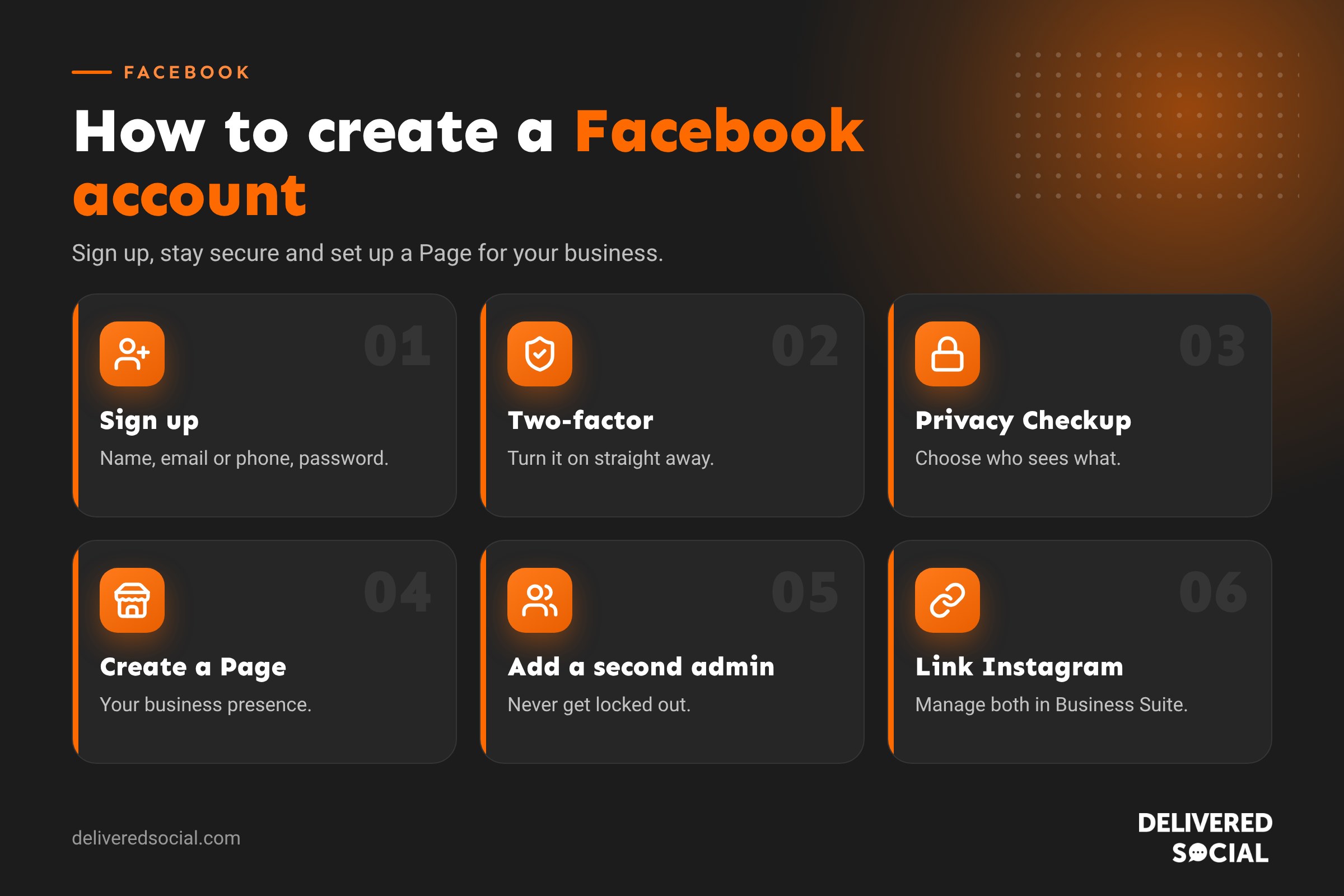
- Account confirmed by email or phone.
- Two-factor authentication switched on.
- Privacy settings reviewed.
- Business Page created with logo, cover photo and contact details.
- A second trusted admin added to the Page.
Frequently asked questions
Can I create a Facebook account without a phone number?
Yes. You can sign up with an email address instead.
Can I have two Facebook accounts?
Facebook only allows one personal account per person. You can create several Pages from one account, and Facebook lets you add extra personal profiles linked to your main account for different interests.
Do I need a personal account to have a business Page?
Yes. Pages are created and managed by people with personal accounts, though your personal profile isn’t shown on the Page.
Is Facebook free?
Yes. Creating an account and a Page is free. Meta Verified and advertising are paid options.
Need help setting up Facebook for your business?
We set up and manage Facebook Pages, Instagram accounts and Meta advertising for small businesses across Surrey, Hampshire and the UK. See our social media services or call us on 01483 608 303.































