

Keep reading
Rather we just did it for you?
Let's get your business seen.
Social media, websites, SEO and ads from a team you can actually meet.
Your header, footer and menu appear on every page of your website, so they’re some of the most important parts to get right. They hold your logo, navigation, phone number, calls to action, contact details and legal links. Yet in WordPress, where you edit them depends on your theme and page builder, which is why so many people get stuck. This guide explains how to edit your WordPress header, footer and menu, whether you use a classic theme, a block theme or a page builder such as Elementor, plus what to put in each for the best results.
First, work out what your site uses
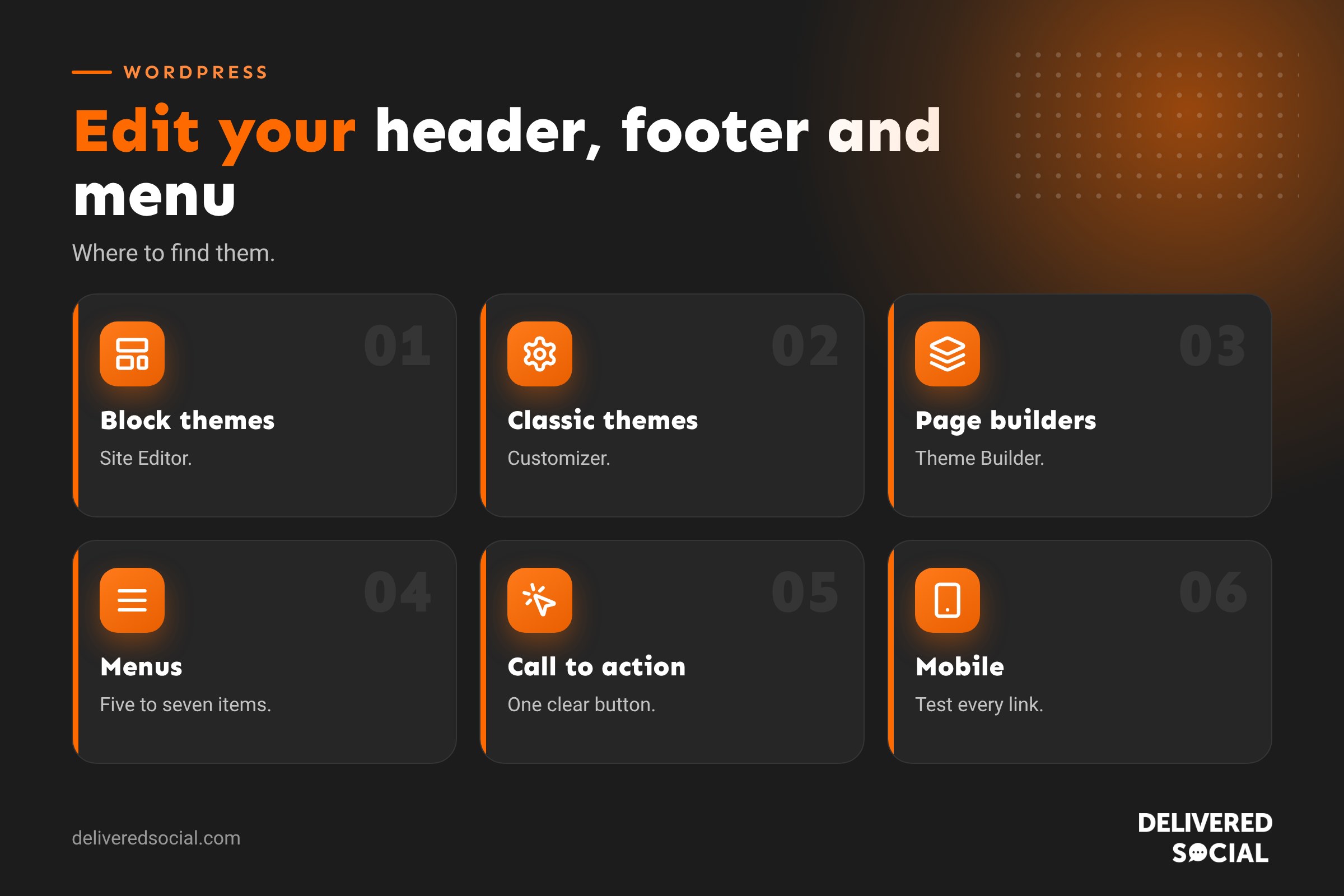
There are three common set-ups, and each edits headers and footers differently:
- Block theme (full site editing): you’ll see Appearance > Editor in your dashboard.
- Classic theme: you’ll see Appearance > Customize, Menus and often Widgets.
- Page builder theme: headers and footers are built in the builder, such as Elementor’s Theme Builder or your theme’s own builder.
Not sure? Go to Appearance > Themes to see your active theme, then check the menu items under Appearance. If a page builder is installed, look for its templates area. Always take a backup before making big changes; see how to back up a WordPress site.
How to edit the WordPress menu
In a classic theme
- Go to Appearance > Menus.
- Select the menu to edit, or create a new one.
- Add pages, posts, categories or custom links from the left-hand panel.
- Drag items to reorder them; drag slightly right to create a dropdown sub-item.
- Edit an item’s label by clicking the arrow next to it.
- Under Menu Settings, choose where it displays, such as Primary Menu or Footer Menu.
- Click Save Menu.
In a block theme
- Go to Appearance > Editor > Navigation, or open the Header template part.
- Select the Navigation block.
- Add, remove or drag links; add a submenu from the block toolbar.
- Click Save.
In Elementor or another builder
Your menu content usually still comes from Appearance > Menus, while the builder’s Nav Menu widget controls how it looks. Edit the items in Menus, then style them in the header template.
How to edit the WordPress header
In a block theme
- Go to Appearance > Editor > Patterns > Template Parts > Header, or click the header while editing a template.
- Change the site logo, title, navigation and buttons using blocks.
- Adjust colours, spacing and typography in the styles panel.
- Save. Changes apply wherever the header is used.
In a classic theme
- Go to Appearance > Customize.
- Look for Site Identity (logo, site title, favicon) and Header settings.
- Many themes offer header layouts, colours and button options here.
- Click Publish to save.
If your theme doesn’t offer the option you need, changes may need a child theme and code, which is a job for a developer.
In Elementor Pro
- Go to Templates > Theme Builder > Header.
- Edit the existing header with Elementor.
- Change the logo, menu, buttons and layout with widgets.
- Check the display conditions, usually Entire Site.
- Click Update.
How to edit the WordPress footer
In a block theme
Go to Appearance > Editor > Patterns > Template Parts > Footer. Edit text, links, columns, social icons and copyright details with blocks, then save.
In a classic theme
- Go to Appearance > Widgets to edit footer widget areas, such as contact details, menus or text.
- Check Appearance > Customize > Footer for copyright text and layout options.
- Some themes don’t let you remove credit text without a premium version or code.
In Elementor Pro
Go to Templates > Theme Builder > Footer, edit the template and set display conditions.
Editing the copyright year
An out-of-date copyright year makes a site look neglected. Many themes and builders let you use a dynamic year that updates automatically. In block themes, some patterns include it; otherwise a small shortcode or your developer can set it up.
What to put in your header
- Logo linking to the homepage.
- Clear navigation with five to seven main items.
- One main call to action, such as Get a Quote, Book Now or Call Us.
- Phone number if calls matter to your business, clickable on mobile.
- Search for larger sites and shops.
- Basket and account icons for online shops.
Keep it uncluttered. A busy header slows visitors down and looks messy on mobile.
What to put in your footer
- Contact details: address, phone, email and opening hours.
- Key links: services, about, contact, blog.
- Legal pages: privacy policy, cookie policy, terms.
- Social media icons.
- Accreditations, awards and trust badges.
- Company number and registered office if you’re a limited company.
- Charity number if you’re a registered charity.
- A newsletter sign-up, if you run one.
Menu best practice
- Use plain labels people understand: “Services”, not clever names.
- Put the most important pages first and Contact last.
- Avoid more than two levels of dropdowns.
- Check the mobile menu is easy to open and use.
- Make sure every link works and none point to drafts or old pages.
- Use menus to support SEO by linking your key service pages. See our WordPress SEO checklist.
Common problems and fixes
| Problem | Likely fix |
|---|---|
| Menu changes don’t show | Check the menu location, then clear your site and browser cache |
| No Menus option under Appearance | You’re using a block theme; use Appearance > Editor |
| Header looks different on some pages | Check template display conditions or page-level settings |
| Logo is blurry | Upload a larger image, ideally twice the display size, or an SVG |
| Footer credit won’t go | Theme limitation; check premium options or ask a developer |
| Mobile menu doesn’t open | Plugin or script conflict; test with plugins disabled on staging |
Accessibility tips
- Make sure menus can be used with a keyboard.
- Use good colour contrast for text and buttons.
- Add alt text to your logo, such as your business name.
- Keep tap targets large enough on mobile.
Example: a quick header refresh
A local plumber’s header had nine menu items, two phone numbers and no clear button. We trimmed the menu to five items, made one tappable phone number prominent on mobile and added a bright “Get a Quote” button. Calls from the website went up, simply because the next step was obvious.
When to get help
If changes involve code, child themes or complex layouts, or if editing risks breaking your site, it’s worth asking your web agency. See also how to edit a WordPress site and how to change your WordPress homepage.
Test your changes
After editing your header, footer or menu, check the site in a private browser window on desktop and mobile. Click every menu link, test the call-to-action button and make sure phone numbers dial correctly on a phone. If something looks wrong for visitors but fine for you, it’s usually caching, so clear your caching plugin and any host cache.
Keep a record of changes
Note what you changed and when, especially in shared sites. If something breaks later, a simple log makes it much quicker to undo the right change.
Quick glossary
- Template part: a reusable section such as a header or footer in a block theme.
- Menu location: where a menu appears, set by your theme.
- Widget: a content block for sidebars and footers in classic themes.
- Theme Builder: Elementor Pro’s tool for site-wide templates.
- Child theme: a safe way to customise a theme’s code.
Key takeaways
- Where you edit depends on your theme: Editor, Customizer or page builder.
- Menus are usually managed in Appearance > Menus or the Navigation block.
- Keep headers simple with one clear call to action.
- Use the footer for contact details, legal links and trust signals.
- Back up first and check changes on mobile.
Frequently asked questions
How do I edit my WordPress header?
Use Appearance > Editor in block themes, the Customizer in classic themes, or your page builder’s header template.
Where is the footer in WordPress?
In the Footer template part, Widgets, the Customizer or your builder’s footer template.
Why can’t I find Appearance > Menus?
Block themes manage menus in the Site Editor instead.
How do I add a page to my menu?
Add it from the left panel in Menus, or add a link in the Navigation block.
How do I make a dropdown menu?
Drag an item slightly right under a parent item, or add a submenu in the Navigation block.
Can I have different headers on different pages?
Yes, with templates and display conditions in most builders and block themes.
How do I remove “Powered by WordPress”?
Edit the footer; some themes need a premium version or code to remove it.
Why are my changes not showing?
Clear your caching plugin, host cache and browser cache.
How many menu items should I have?
Ideally five to seven in the main menu.
Will changing my menu affect SEO?
It can help if your key pages are linked clearly; avoid removing important links.
Want a header and footer that work harder?
We design and manage WordPress websites for businesses and charities across Surrey, Hampshire and the UK. Call us on 01483 608 303.