

Keep reading
Rather we just did it for you?
Let's get your business seen.
Social media, websites, SEO and ads from a team you can actually meet.
Logging in to Instagram is usually quick, but when it goes wrong it can be frustrating, especially if Instagram is how your business talks to customers. This step-by-step guide explains how to log in to Instagram on your phone and computer, how to manage more than one account, and what to do if you can’t get in.
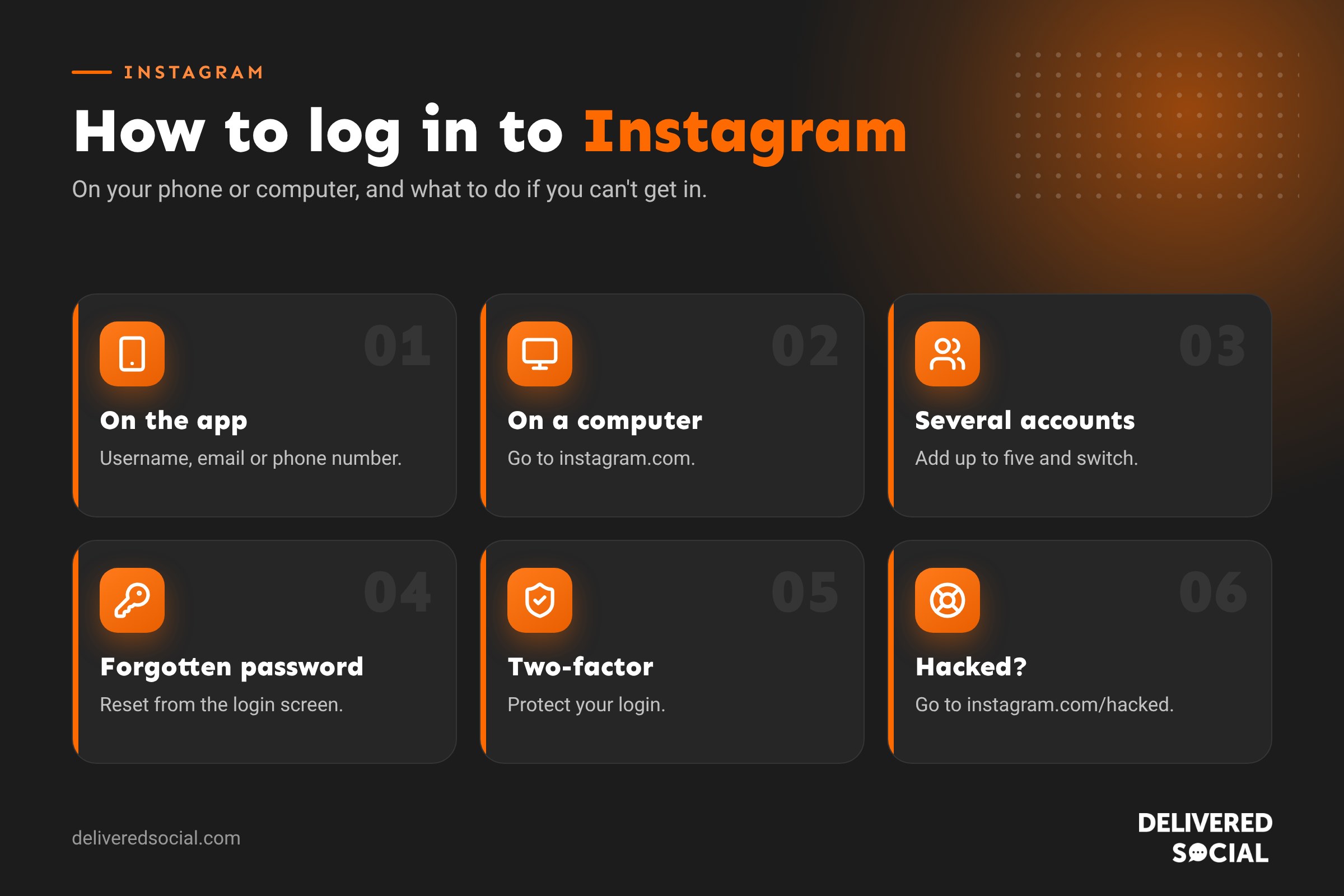
How to log in to Instagram on the app
- Download the Instagram app from the App Store (iPhone) or Google Play (Android), and open it.
- Tap Log in. If you’ve used the account on this phone before, you may see your profile picture: tap it to continue.
- Enter your username, email address or mobile number, then your password.
- Tap Log in.
- If you’ve turned on two-factor authentication, enter the code from your authentication app, text message or WhatsApp.
You can also log in with your Facebook account if the two are linked in Accounts Centre. Tap Continue with Facebook or log in with Facebook and follow the prompts.
How to log in to Instagram on a computer
- Go to instagram.com in a web browser such as Chrome, Safari, Edge or Firefox.
- Enter your username, email or phone number and your password.
- Click Log in and enter a security code if asked.
- Choose whether to save your login information. Only do this on your own computer.
On a computer you can browse, post photos and videos, reply to messages and comments, and check your profile. Our guide to using Instagram on a desktop explains what you can and can’t do.
Ways to log in to Instagram
| Method | How it works | Good to know |
|---|---|---|
| Username and password | The standard way | Your username is the handle after the @ |
| Email or phone number | Use either in place of your username | Must be the one linked to your account |
| Log in using your connected Facebook account | Only works if the accounts are linked in Accounts Centre | |
| Saved login | Tap your profile picture on a device you’ve used before | Handy, but only on your own devices |
| Passkey | Use your phone’s face, fingerprint or PIN unlock | Being rolled out by Meta, and more secure than a password |
How to log in to more than one Instagram account
Many business owners run a personal account and a business account. Instagram lets you add several accounts to the app and switch between them without logging out:
- Go to your profile and tap your username at the top of the screen.
- Tap Add Instagram account.
- Choose Log in to existing account and enter the details for the second account.
- To switch, tap your username at the top of your profile and choose the account.
Always check which account you’re using before you post, comment or reply. Posting a personal photo on your business account (or the other way round) is a common mistake.
Can’t log in to Instagram? Common problems and fixes
| Problem | What to try |
|---|---|
| Forgotten password | Tap Forgotten password? on the login screen and follow the link sent to your email or phone |
| Forgotten username | Log in with your email or phone number instead, or ask a friend to check your profile |
| “Incorrect password” but you’re sure it’s right | Check caps lock and autocorrect, then reset your password |
| Not getting the security code | Check your spam folder and signal, wait a few minutes, or choose another way to receive the code |
| Lost access to your email or phone | Use the “Need more help?” option and follow Instagram’s identity checks |
| App keeps crashing | Update the app, restart your phone, or try logging in on instagram.com |
| “Sorry, there was a problem with your request” | Switch between Wi-Fi and mobile data, turn off any VPN, and try again later |
| Account suspended or disabled | Follow the on-screen steps to appeal within the time shown |
What to do if your Instagram account has been hacked
- Check your email for a message from [email protected] about a changed email or password. It often includes a link to secure your account.
- Go to instagram.com/hacked on your phone or computer and follow the steps.
- Verify your identity if asked, for example with a video selfie.
- Once you’re back in, change your password, turn on two-factor authentication and remove any apps or devices you don’t recognise.
- Tell your followers if the hacker posted anything or sent messages in your name.
Be careful of anyone who messages you offering to “recover” your account for a fee. These are almost always scams. Only use Instagram’s official recovery tools.
How to keep your Instagram login safe
- Use a strong, unique password that you don’t use anywhere else, ideally stored in a password manager.
- Turn on two-factor authentication in Accounts Centre, under Password and security. An authentication app is safer than text messages.
- Keep your email and phone number up to date, so you can always receive reset links.
- Check “Where you’re logged in” in Accounts Centre and log out of any devices you don’t recognise.
- Never share your password or login codes, even with someone claiming to be from Instagram.
- Ignore messages saying your account will be deleted for copyright or rule breaches unless they appear in the app’s Account Status page.
Giving your team access without sharing passwords
If staff, a freelancer or an agency help with your Instagram, you don’t need to give them your password. Connect your Instagram account to a Facebook Page and Meta Business Suite, then give people access through Business Settings. You can remove their access at any time, and you stay in control of the account. Scheduling tools such as Metricool also let team members post and reply through an official connection.
How to log out of Instagram
On the app, go to your profile, tap the three lines at the top right, scroll to the bottom and tap Log out. If you have several accounts, you can log out of one or all of them. On a computer, click More at the bottom left, then Log out. To log out of a device you no longer have, use Where you’re logged in in Accounts Centre.
Logging in to a business Instagram account
Business and creator accounts log in exactly the same way as personal accounts. The difference is who should have the login. Ideally the business owner keeps the password and two-factor authentication, and everyone else works through Meta Business Suite or an approved scheduling tool. That way, if a staff member leaves, you simply remove their access rather than changing passwords and losing time.
If your business account was set up by a former employee or agency and you don’t know the login, start with “Forgotten password” using the business email address. If the email is one you don’t control, you’ll need to use Instagram’s account recovery steps, which can take longer. It’s worth sorting this out before you urgently need to get in.
What to do if Instagram asks you to confirm it’s you
Instagram sometimes asks for extra checks when you log in from a new phone, a new location or after a lot of activity. You may be asked to:
- Enter a code sent to your email or phone.
- Confirm a login from another device you’re already signed in on.
- Record a short video selfie turning your head, so Instagram can check you’re a real person.
- Choose photos of people you follow or answer questions about your account.
These checks are there to protect your account. Complete them in the official app or website, and never share the codes with anyone else.
Instagram login tips for shared or work devices
- Don’t tick “Save login info” on a computer other people use.
- Use a private or incognito window on shared computers.
- Always log out when you’re done, and check “Where you’re logged in” afterwards.
- On a shop’s shared tablet, consider using Meta Business Suite instead of the Instagram app, so staff can reply to messages without full account access.
Logging in to Instagram’s other apps
Your Instagram account also lets you sign in to Meta’s other apps. Threads uses your Instagram account to log in. Edits, Instagram’s video editing app, uses your Instagram login too. Meta Business Suite and Meta Ads Manager use your Facebook login, with your Instagram account connected to them.
Frequently asked questions
Can I log in to Instagram without the app?
Yes. Go to instagram.com in any web browser on your phone or computer.
Can I log in to Instagram with my phone number?
Yes, if the number is linked to your account. Enter it on the login screen instead of your username.
Why does Instagram keep logging me out?
It can happen after an app update, a password change, or if Instagram spots unusual activity. Update the app and check your security settings.
How many accounts can I add to the Instagram app?
You can add up to five accounts and switch between them without logging out.
Need help running your Instagram?
We help small businesses across Surrey, Hampshire and the UK set up, secure and manage their Instagram accounts. If you’re starting from scratch, read our guide to creating an Instagram account, see our social media services or call us on 01483 608 303.